Agency production template: your creative approval workflow, ready to import
Each stage becomes a list, deadlines calculate themselves and the client approves in one click. Download the template and import it into Experto.

This template sets up your whole agency's creative approval workflow in Experto, from the client's request to launch. Each stage becomes a list, deadlines calculate themselves and the client approves in one click, without leaving the workflow.
Download the file, import it into your account and take a sample job from start to finish before bringing in your real clients.
Why agency production gets stuck
Production gets stuck when no one knows where the job is. The artwork was approved in a voice message in the group chat, the final copy is sitting in someone's inbox and the account manager spends the afternoon chasing the client for feedback.
That time adds up. In the State of Creative Workflow Report 2023, by Ziflow and the American Marketing Association, 48% of respondents said they spend at least five hours per month chasing feedback.
The symptoms are usually the same:
- approvals lost in the group chat;
- jobs with no owner, or done twice;
- account managers chasing the client all day;
- a paid license just so the client can follow along.
How the template sets up your agency
The template separates three questions: which client the job is for, what stage it's in and what's left to do. Each answer has its own place in Experto:
- Account: this is your agency, with the whole team. If it's still empty, our guide to getting started with Experto shows how to bring your team in.
- Clients: each client becomes a sub-account, with a name, color and photo. Whoever approves on their side joins as a guest.
- Stages: each stage of your process is an account list, connected to the next one.
- Jobs: each job is an item tagged with the client, with the brief in the description and the files attached.
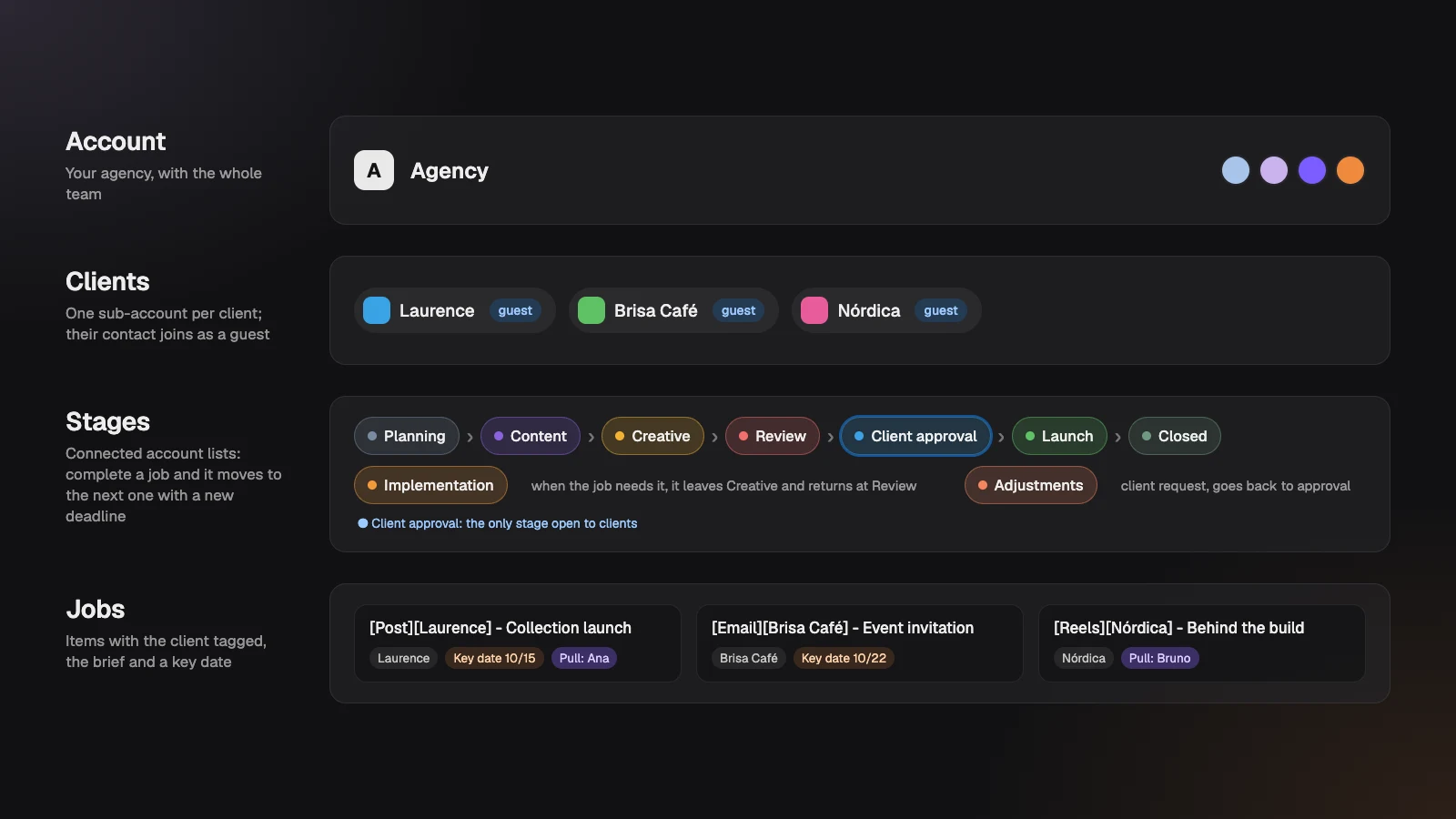
With connected lists, completing a job in one stage sends it to the next, with a new deadline. No one has to drag anything or ping the next person in line. It's the same logic you'll find on the Experto for agencies page, now as a ready-to-import template.
The creative approval workflow, stage by stage
There are seven stages in sequence plus two support stages, and each one gives the job a deadline when it arrives. Deadlines count in business days, based on the working hours you set for the account.
| Stage | What happens | Who acts | Deadline on arrival |
|---|---|---|---|
| Planning | The job comes in with client, brief and Key date | Account or strategy | Set at creation |
| Content | Copy, script and caption | Copywriting | 1 business day |
| Creative | Artwork or video attached to the job | Design | 2 business days |
| Implementation | Landing page, email send, campaign | Tech or media | Set when moved |
| Review | Check against the brief | Account management | 1 business day |
| Client approval | The client sees the job and approves it | The client, as a guest | 3 business days |
| Launch | Publish, schedule, send or upload | Social or media | 1 business day |
| Closed | Final check and wrap-up | Account management | 1 business day |
| Adjustments | Changes the client asked for | Whoever did that stage | Set when moved |
In practice:
- Planning. This is where the job is born, with the client tagged, the full brief and the publish date as the Key date, which stays fixed while the job moves along.
- Content and Creative. Whoever takes the job Pulls it, so it lands in that person's daily checklist and the team sees who has it. Done? Complete it and the job moves on its own.
- Implementation. Not every job comes through here. When the piece needs to become a landing page, an email or a campaign, design uses Move to… and sends the job to Implementation instead of completing it.
- Closed. The job arrives open. The account manager checks the published link and final files, then completes it, closing the job for good.
- Adjustments. Client asked for changes over chat, by email or in a meeting? The account manager notes the request on the job and moves it to Adjustments. Completing it there sends the job back to Client approval.
Add up the deadlines and the creative approval workflow takes about eight business days from Planning to Launch. That's why it pays to put each job into the workflow at least two weeks before its Key date.
How the client approves without leaving the workflow
In the workflow, the client joins as a guest and only sees the approval stage. They see the title, brief, Key date and attachments, and only for their own company's jobs.
To approve, they complete the job. Right away, it moves to Launch and whoever handles the account gets a notification in the bell. They can even approve from the iPhone app.
Guests don't take a seat, and they're unlimited on every plan. Your agency pays nothing extra for the client to take part in approvals.
Job names you can find in seconds
Every job follows the same pattern: [Type][Client] - Title. For example, [Post][Laurence] - Collection launch or [Email][Laurence] - Event invitation.
With type and client up front, anyone can find the job by searching, in the panel on the edge of the screen or in the Organizer.
When you create the job in New item, type #Laurence as well. The #Laurence disappears from the title and the job comes in already tagged with the right client.
How to try the template before using it with clients
The template comes with a Start here list, a ten-step guide to set up and test the workflow. Before bringing in real clients, do a dry run:
- Import the template as an account admin.
- Turn on sub-accounts as Clients and create a test client.
- Invite yourself, with another email, as that client's contact.
- Take the sample job through every stage: Pull it, complete it and test Move to… from Creative to Implementation.
- Sign in as the test client and approve the job.
- Adjust each stage's deadlines to your team's pace.
That way you see the whole workflow running, including the screen your client will use.
Briefs created by your AI agent
With Experto MCP, your AI agent creates the jobs for your whole content plan in one go. It works with Claude, ChatGPT and other MCP-compatible apps.
Paste the month's content plan or the meeting transcript and ask, for example: "create in Planning the November jobs for Laurence, with the brief in the description and the publish date as the Key date". Each request creates up to 50 jobs, already tagged with the client and following the naming pattern.
In the Account context for the AI, write who your clients are, what each one is like and how your jobs are named. That's where the agent gets the tone for each brief. It also answers questions like "what has been waiting for approval for more than three days?" and handles Pull and Push.
An admin turns on AI connections in Administration › AI agents and decides whether the agent only reads or also edits. The AI never deletes anything. The full walkthrough is in how to turn meeting notes into tasks with AI.
Each client's own list
Every client you create gets a list of its own, great for backlog, ideas, one-off tasks and brainstorming. Everything for that client sits in one place, outside the production workflow.
Heads up: this list starts open to the client, so their contact sees whatever is in it. For internal ideas, set Clients who see it to None in the list settings.
To set up the team's week, see how to plan your team's week in the Organizer. For each client's monthly content plan and report, set up routines that come back on their own.
Download the template and import it in 3 steps
The template is an Experto file, ready to import into your account.
Download the agency production template (.json)
- Sign in to your account as an admin. No account yet? Create your free account.
- Click the gear next to My lists and choose Import lists.
- Choose the file, check the 10 lists and 11 items in the preview and click Import.
The lists arrive set to Admins only. Follow the Start here list to open the stages to your team and the approval stage to your clients.
How to adapt it to your agency's size
The template is a starting point: rename, remove or add stages as you like. A few ideas:
- Small agency, where the same person writes and designs: merge Content and Creative into a single list.
- Separate copy review: add a stage between Content and Creative.
- Clients who take longer: give Client approval a longer deadline.
Adjust it all in each list's settings, under Connected list and Estimate. Removed a stage from the middle? Connect the one before it straight to the one after.
The same logic works for other kinds of companies, each with its own template: accounting firms, franchises and chains, client implementation, construction and architecture, condominium managers and requests between departments.
Frequently asked questions
Does the client have to pay to approve jobs in Experto?
No. The client joins as a guest, without taking a seat, on every plan. They only see their own company's jobs and approve by completing them.
Can I use the template if I'm not an admin?
You can import it, but the lists arrive as personal lists, and no client can see the approval stage. For the full workflow, import it as an admin.
How much does it cost to use Experto at an agency?
Experto is free forever for up to 2 members, with every feature. Pricing for larger teams is on the pricing page.
Ready to get approvals out of the group chat? Create your free account, import the template and put your first job into the creative approval workflow today.