Interdepartmental request template, with approvals and deadlines
Requests tagged by department, triage, leadership approval and sign-off by the requester, with a deadline at every stage. Download and import it.

This template sets up an interdepartmental request workflow in Experto with a clear start, middle and end: the request comes in through a form or with an #Area, the point person triages it, whoever takes it gives it a Pull and the delivery goes back to the requester to check. When a request costs money, leadership approves it with one click, without holding up the queue.
Download the file, import it into your company's account and take a test request from start to finish before opening it up to everyone.
The request nobody knows who picked up
Requests between departments get stuck when nobody knows who has them. An email goes to Finance with half the company on cc, someone replies "I'll look into it" and, a week later, the same request shows up again in the hallway.
This back-and-forth takes up more and more time. In the Harvard Business Review, Rob Cross, Reb Rebele and Adam Grant report that, based on data they collected over two decades, the time managers and employees spend on collaborative work has grown by 50% or more.
With so many requests flying around, what matters is the path each one takes:
| Today | With the template |
|---|---|
| Requests by email, with everyone on cc | Requests in a list, with the department tagged |
| Nobody knows who picked it up | Whoever does it gives it a Pull, and everyone sees who has it |
| The director's approval gets lost in the inbox | The director approves with one click, and the request moves on |
| Each department with its own spreadsheet | One queue, which each department filters |
| Delivery without confirmation | The requester checks and completes it |
How the interdepartmental request workflow works in Experto
Each department that handles requests becomes a sub-account, and each stage of the request is an account list. Everything else fits into that structure:
- Account: this is the company, with people from every department.
- Areas: Finance, HR, IT, Legal and any other department that handles requests, one sub-account each. The
#Areasays who the request is for. - Lists: the request's stages, connected. Complete it in one, and the request moves to the next with a new deadline.
- Requests: items with the department tagged, the requester's name in the title and a key date for when they need it.
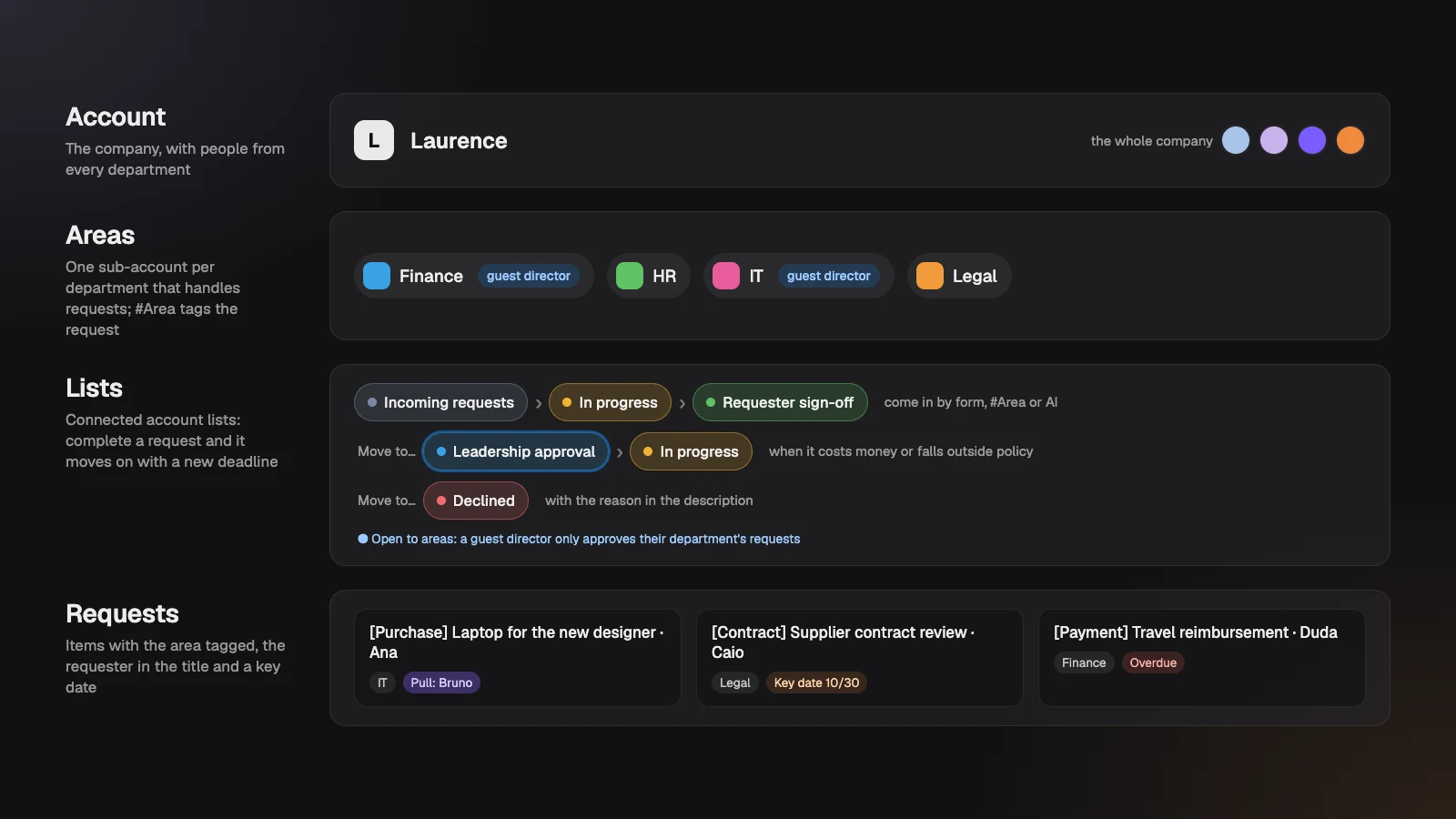
It's the same logic you'll find on the Experto for departments page, now as a ready-to-import template. Each list has a job along the way:
| List | What happens | Who acts | Deadline on arrival |
|---|---|---|---|
| Incoming requests | The request comes in and gets triaged | The department's point person | 1 business day, by agreement |
| Leadership approval | Requests with a cost or an exception wait for a yes | The department's director | Set by whoever moves it |
| In progress | Someone gives it a Pull and does it | Whoever does the work | 3 business days |
| Requester sign-off | The requester checks it | The requester | 2 business days |
| Declined | What won't be done, with the reason | Point person | No deadline |
Three ways in for a request
A request can come in through a form, New item or your AI agent, and it always lands in the same list. Pick the ones that make sense for your company:
- Form: your company's request form sends everything to the Incoming requests list's address. With Subject, Description, Area and Key date fields, each piece of information lands in the right place.
- New item: anyone in the list types, from the panel on the edge of the screen or on the web,
Review the supplier contract · Caio #Legal @Incoming requests. The request goes to the right list, already tagged with the department. Several at once? Paste one line per request, as in our post on how to paste multiple tasks at once. - AI agent: walked out of a meeting with five action items? Paste the notes and ask your agent to create the requests, each with its department. The step by step is in our post on how to turn meeting notes into tasks with AI.
Triage: the request's first business day
Each department has a point person who checks new requests every business day. With the list set to Specific people, every new request notifies the point people. Triage answers four questions:
- Is it complete? If something is missing, write what's missing in the description and talk to the requester.
- Does it cost money or fall outside policy? Use Move to… › Leadership approval.
- Won't be done? Use Move to… › Declined, with the reason in the description.
- All good? Complete it, and the request moves to In progress with a 3-business-day deadline.
Deadlines count by the account's Business days and hours. In a company that works Monday to Friday, a request triaged on Friday night starts counting on Monday morning.
Leadership approval without holding up the queue
The director approves by completing, and the request moves on to In progress by itself. Every request that reaches the list notifies the directors, so nobody has to chase approvals in the hallway.
A director who only approves can join as a guest of their department, without taking up a seat. They only see their own department's requests waiting for approval and approve them on the web or in the iPhone app.
As a guest, they can't edit the request: they complete it and can leave a comment when they do. To decline, they let the point person know, who moves the request to Declined with the reason.
Whoever does it gives it a Pull, and nobody hands out work
In the In progress list, whoever takes the request gives it a Pull, and it goes into their checklist for the day. The list shows everyone who has each request, and nobody does the same work twice. Ran out of time? Push sends it back for someone else to grab.
In the Organizer, each department filters its own queue and sees what's overdue in red. Group the In progress list by department to see everyone's workload on one screen. Our post on how to split tasks without assigning them covers Pull and Push in detail.
The delivery goes back to the requester
Once completed in In progress, the request moves to Requester sign-off, with 2 business days to check it. Since the requester's name is in the title, they find their request with search.
- All good? The requester completes it, and the request is closed.
- Something missing? Move to… › In progress, with what's missing written in the description.
- No answer by the deadline? The point person checks it and completes it.
How to test before opening it up to the company
The template comes with a Start here list, a ten-step guide to set up and test everything. Do a dry run with the two sample requests:
- Import the template as an account admin.
- Turn on sub-accounts with the name Areas and create a test department.
- Tag the department on the two sample requests in Incoming requests.
- Take the purchase request all the way to Requester sign-off, giving it a Pull along the way.
- Send the access request to Leadership approval and approve it.
- Turn on the form and send a test request.
Download the template and import it in 3 steps
The template is an Experto file, ready to import into your company's account.
Download the interdepartmental request workflow template (.json)
- Sign in to the account as an admin.
- Click the gear next to My lists and choose Import lists.
- Choose the file, check the 6 lists and 12 items in the preview and click Import.
The lists arrive as Admins only. Follow the Start here list to open each one to the right people.
How to adapt it to your company
The template is a starting point: rename, remove or add lists as you like. A few ideas:
- Confidential HR or Legal requests: create a list with only that department's people, set to Specific people, outside the main workflow.
- Departments with different paces: adjust the Estimate for each handoff under Connected list, or change the request's Due by once it reaches In progress.
- Head office of a store network: use this workflow between the head office departments and the franchise management template with the stores.
- Marketing working as an in-house agency: the agency production template covers content, creative and review.
- Finance trading documents with the accounting firm: the firm can organize its side with the document checklist template for accounting firms.
Frequently asked questions
Do people who only approve have to pay?
No. A director who only approves joins as a guest of their department, without taking up a seat, on every plan. They only see their department's requests waiting for approval.
Can I hide confidential requests?
Yes. Each account list chooses who's in, and a list set to Specific people stays out of sight for anyone who isn't in it. Account admins still see every account list.
How much does it cost to run an interdepartmental request workflow in Experto?
Experto is free forever for up to 2 members, with every feature, and guests are always free. Pricing for larger teams is on the pricing page.
Ready to get requests out of the inbox? Create your free account, import the template and put your first request into the interdepartmental request workflow today.