How to set up daily, weekly and monthly routines in Experto
Complete it and it comes back with a new due date. See how to set up daily, weekly and monthly routines in Experto and get a ready-to-import template.

Recurring tasks are the ones that keep coming back: checking your calendar every day, sending the summary every Friday, paying the bills every month. In Experto, they become a routine with a list connected to itself.
Done? The item comes right back, open, with the next due date already calculated. See how it works, which rhythm to use, and download a template with daily, weekly and monthly routines.
Why recurring tasks slip through the cracks
A recurring task slips because it depends on someone's memory. No client is chasing it and no meeting is scheduled for it. When the week gets tight, it's the first thing pushed to later.
Waiting for it to turn into a habit takes a while, too. In a study published in the European Journal of Social Psychology, 96 volunteers repeated a new behavior every day, and the time until it became automatic ranged from 18 to 254 days. Until then, someone has to remind you.
The usual workarounds:
- a phone alarm you snooze and forget;
- a spreadsheet nobody opens;
- "can you remind me on Friday?" in the team chat.
How a routine works in Experto
A routine is a list connected to itself. With connected lists, completing an item sends it to the next list, like in the agency production template. When the next list is the list itself, the item comes back to it.
When you complete a routine item:
- it goes back to the top of the list, open, right away;
- Start becomes the account's next business hour;
- Due by is calculated from the list's Estimate: 1 day, 1 week, 1 month.
To set yours up, open the list's menu and choose Edit list. Under Connected list, pick the list itself, which shows up as "(this one, becomes a routine)", and fill in the Estimate.
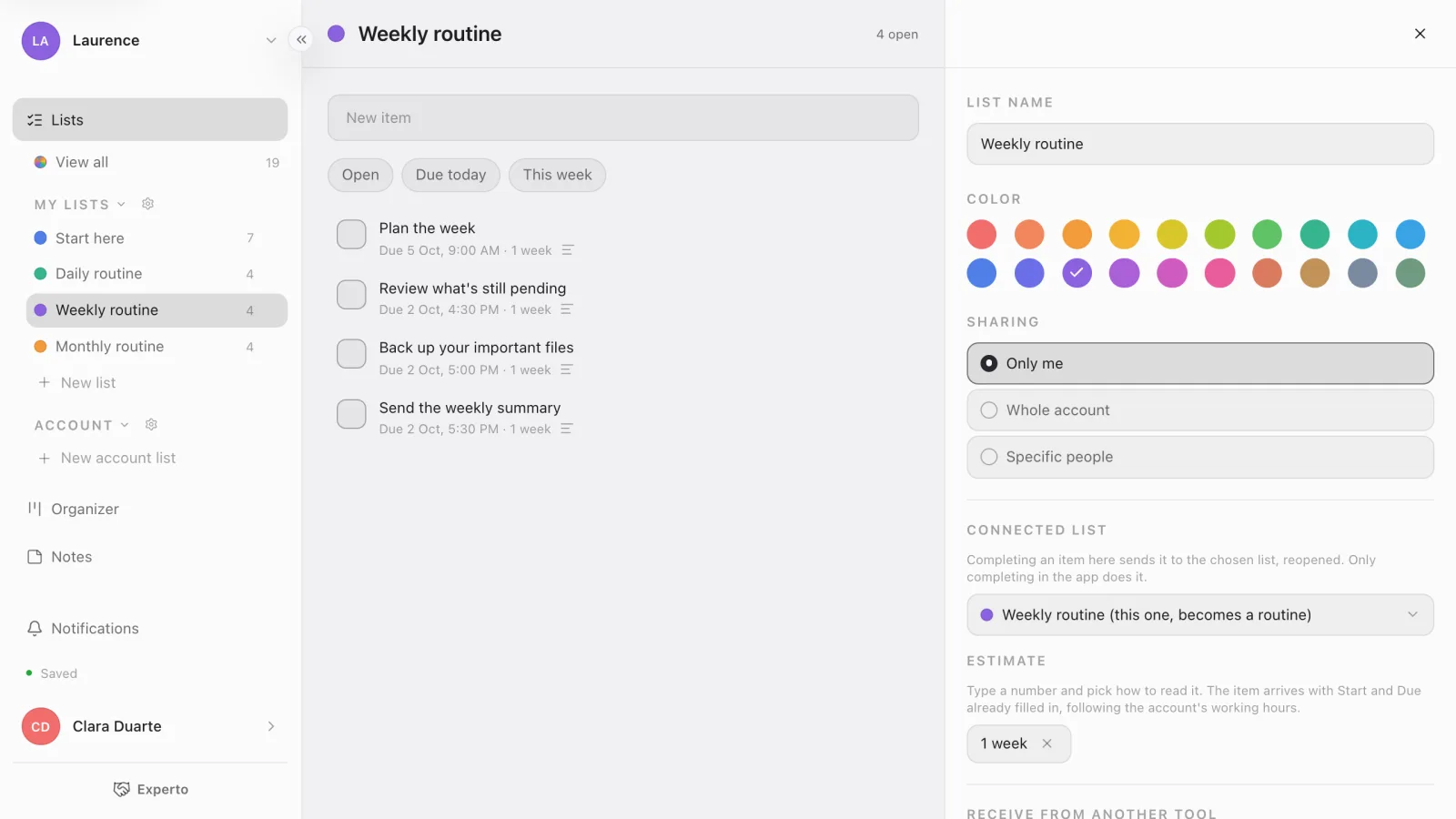
One detail makes a difference: the new due date counts from the moment you completed the item. Sent the weekly summary on Wednesday? The next one is due the following Wednesday.
If the exact day matters, complete it on that day or adjust Due by afterwards.
Daily, weekly or monthly: which estimate to use
Each list has a single rhythm, so sort your recurring tasks by frequency. One list per interval.
| Routine | Estimate | Completed | Comes back due |
|---|---|---|---|
| Daily | 1 working day | Tuesday, 10:00 AM | Wednesday, 10:00 AM |
| Weekly | 1 week | Monday, 9:00 AM | the following Monday, 9:00 AM |
| Every two weeks | 2 weeks | the 3rd | the 17th |
| Monthly | 1 month | the 5th | the 5th of the next month |
| Quarterly | 3 months | January 10 | April 10 |
Working days follow the account's business hours, in Administration › Account › Business days and hours. With Monday to Friday selected, a daily routine completed on Friday comes back due on Monday. Weeks and months count on the calendar, and a due date that falls outside business hours moves to the next business hour.
What's due today shows up in a single filter
The Due today filter gathers what's due today across all your lists, routines included. Open All lists and turn on Due today: you get everything due by the end of the day, plus whatever is already late.
Running late? It turns red, and on Mac and Windows the tab on the edge of the screen lets you know right away. This week looks ahead to the end of the week, and the Organizer helps you plan your team's week.
Personal list or account list?
The template arrives as personal lists, in My lists, and that's on purpose. A routine usually belongs to one person: your daily review, your monthly report. With personal lists:
- anyone in the account can import them, no admin rights needed;
- only you can see them until you decide to share;
- they work the same way in a personal account, for routines at home.
When the routine involves more people, open the list's Sharing and choose Specific people or Whole account. People who Can view can also complete items, and the item comes back the same way.
When the routine belongs to the company and can't depend on one person (closing the register, checking stock), its place is an account list. If you're an account admin, use Turn into an account list: the list keeps existing if you leave, and the routine stays connected.
Accounting firms live this cycle every month, and the accounting firm template organizes the monthly close in stages.
Routines at home and for studying
Outside work, the logic is the same. A weekly "Home" list, with watering the plants and changing the bed sheets, shared with whoever lives with you, splits the chores without anyone having to remind anyone. More ideas on the personal organization page.
For students, the routine that matters most is review. The step-by-step guide to make a study plan uses a list connected to itself just for reviews.
The routines template, list by list
The template brings four personal lists, ready to import.
- Start here: seven steps to set up and test.
- Daily routine (1 working day): priorities, messages, overdue items and wrapping up the day.
- Weekly routine (1 week): planning, pending items, backup and summary.
- Monthly routine (1 month): bills, report, subscriptions and next month.
The items come without dates. Give each one its first Due by, or complete what you already did today: from then on, Experto calculates the rest.
Download the routines template (.json)
- Sign in to your account.
- Click the gear next to My lists and choose Import lists.
- Check the 4 lists and 19 items in the preview and click Import.
Then swap the examples for your own. You can paste multiple tasks at once, and each line becomes an item.
Frequently asked questions
What happens if I forget a routine task?
It turns red and stays on the list until you complete it. When you do, the next due date counts from that moment. In the study mentioned above, skipping a day didn't hurt habit formation, so just keep going.
Can I create a routine every 15 days?
Yes. Create a list, connect it to itself and use 2 weeks as the Estimate.
Do I need to be an admin to use the template?
No. The lists arrive as personal lists, in My lists. Only the account's business hours and Turn into an account list need an admin.
How much does Experto cost?
Experto is free forever for up to 2 members, with every feature. Pricing for larger teams is on the pricing page.
No more keeping recurring tasks in your head. Create your free account, import the template and let your routine come back on its own.