Pull and Push: how your team splits the work without anyone handing it out
No handing out tasks, no chasing people in the group chat: each person pulls what they'll do, and everyone sees who has what. Step by step.

Figuring out how to split tasks in your team often turns into a job of its own: the lead hands out work, follows up, reshuffles when someone is out and still answers "who's on this?" several times a day. There's another way, where the team pulls in what each person is going to do and everyone sees who has each task.
In Experto, this way of working is called Pull and Push. This post covers the idea, a step-by-step guide with screenshots and the team agreements that make it work.
The cost of handing out tasks one by one
When every task needs someone to hand it to someone else, the team lead becomes the bottleneck. Nothing moves until they decide, and nobody knows for sure what has already been picked up.
The symptoms show up fast:
- tasks sitting in the list, waiting for someone to say whose they are;
- two people doing the same thing without knowing it;
- follow-ups in the group chat to find out where each task stands;
- whoever finishes early waits for the next instruction.
When deciding how to split tasks in your team, a "who does what" spreadsheet is usually the first attempt, and it's out of date the same day it's made.
Pulling work: where the idea comes from
The logic of pulling work was born on the factory floor. In the Toyota Production System, each process picks up from the previous one only what it needs, when it needs it.
A team works in a similar way. The list shows everything that needs to get done, and whoever has time picks up the next task, without waiting for anyone to hand it out.
How to split tasks in your team with Pull and Push
Experto has no owner field: tasks live in the team's lists, and each person pulls what they're going to do.
Going to work on a task? Pull it and, when you're done, complete it: it's off your plate and the team sees it's done.
1. Keep the tasks in a team list
Use a list shared with the team, or an account list with Who’s in set to Everyone in the account. Don't have lists like that yet? Getting started with Experto shows how to create and share them.
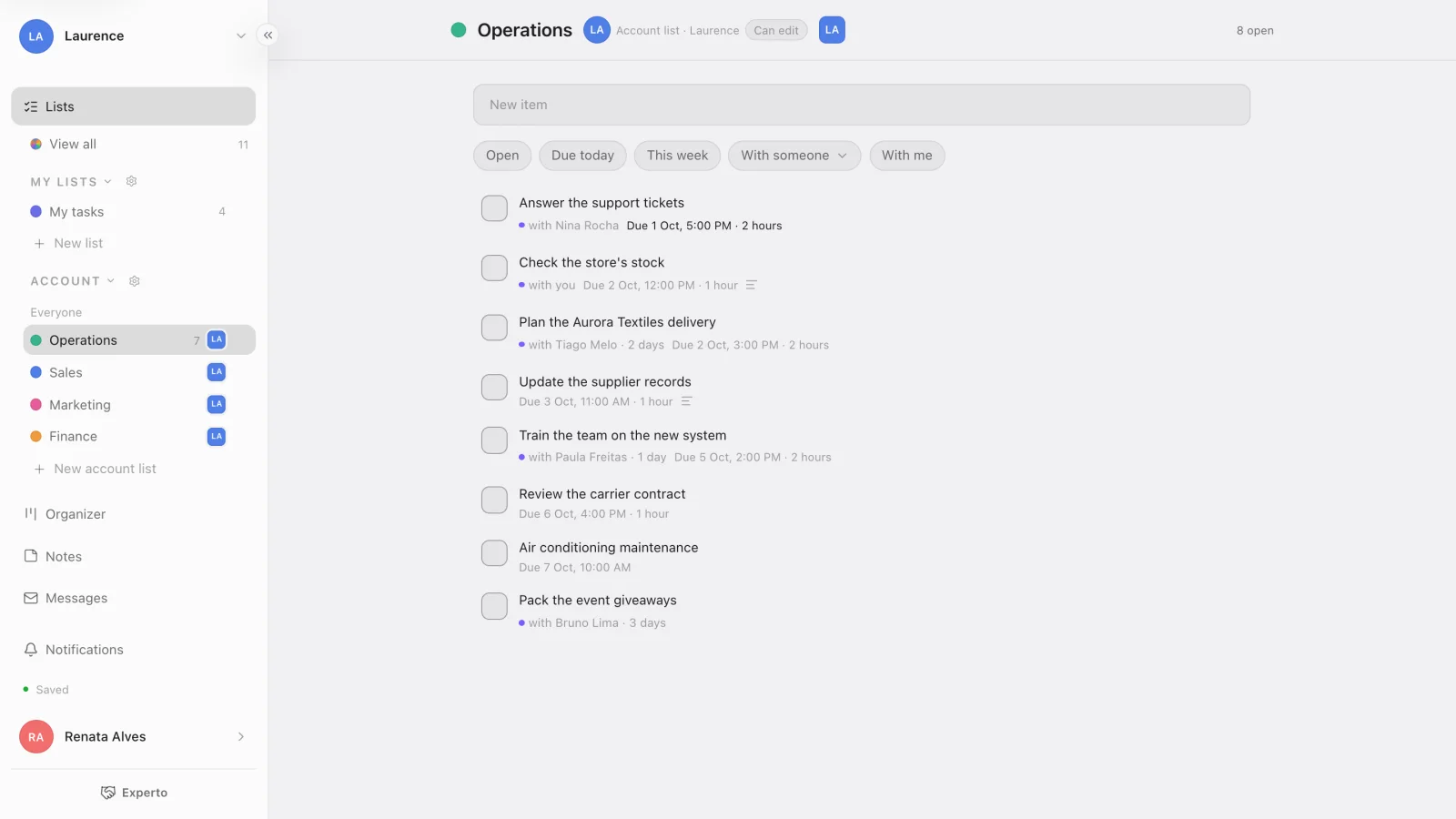
Notice that no task has a fixed owner. The ones someone picked up show "with Nina Rocha" and, after a day, how long they've been with her. The rest are free.
2. Going to work on a task? Pull it
Open the task and click Pull, the purple capsule at the top of the details. You can also select several tasks at once and pull all of them. In the iPhone app, just swipe the row to the right.
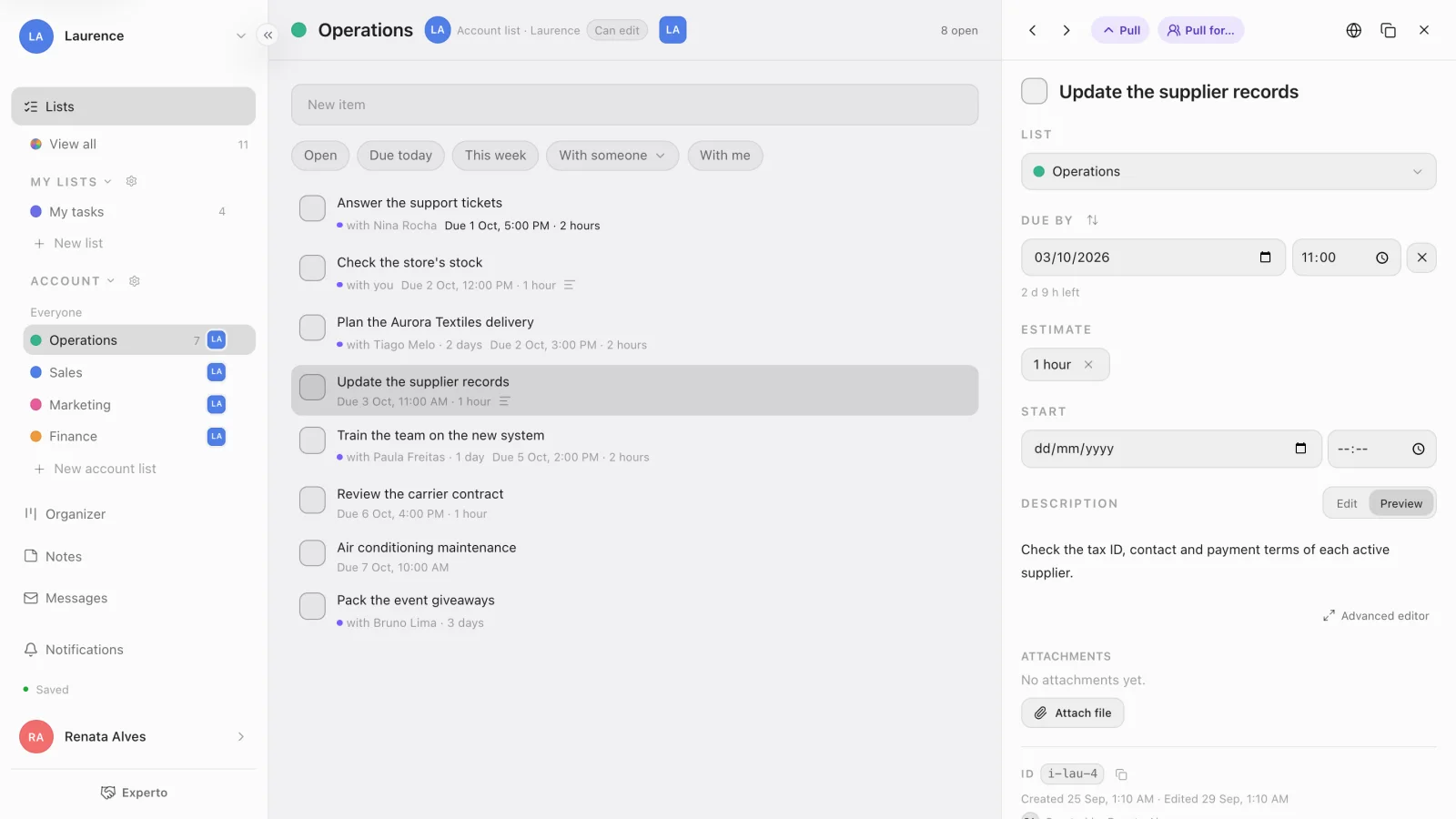
3. The task lands in your list for the day
The task shows up at the top of the first list under My lists, tagged with the list it came from ("from Operations"). That's why each person needs at least one list there.
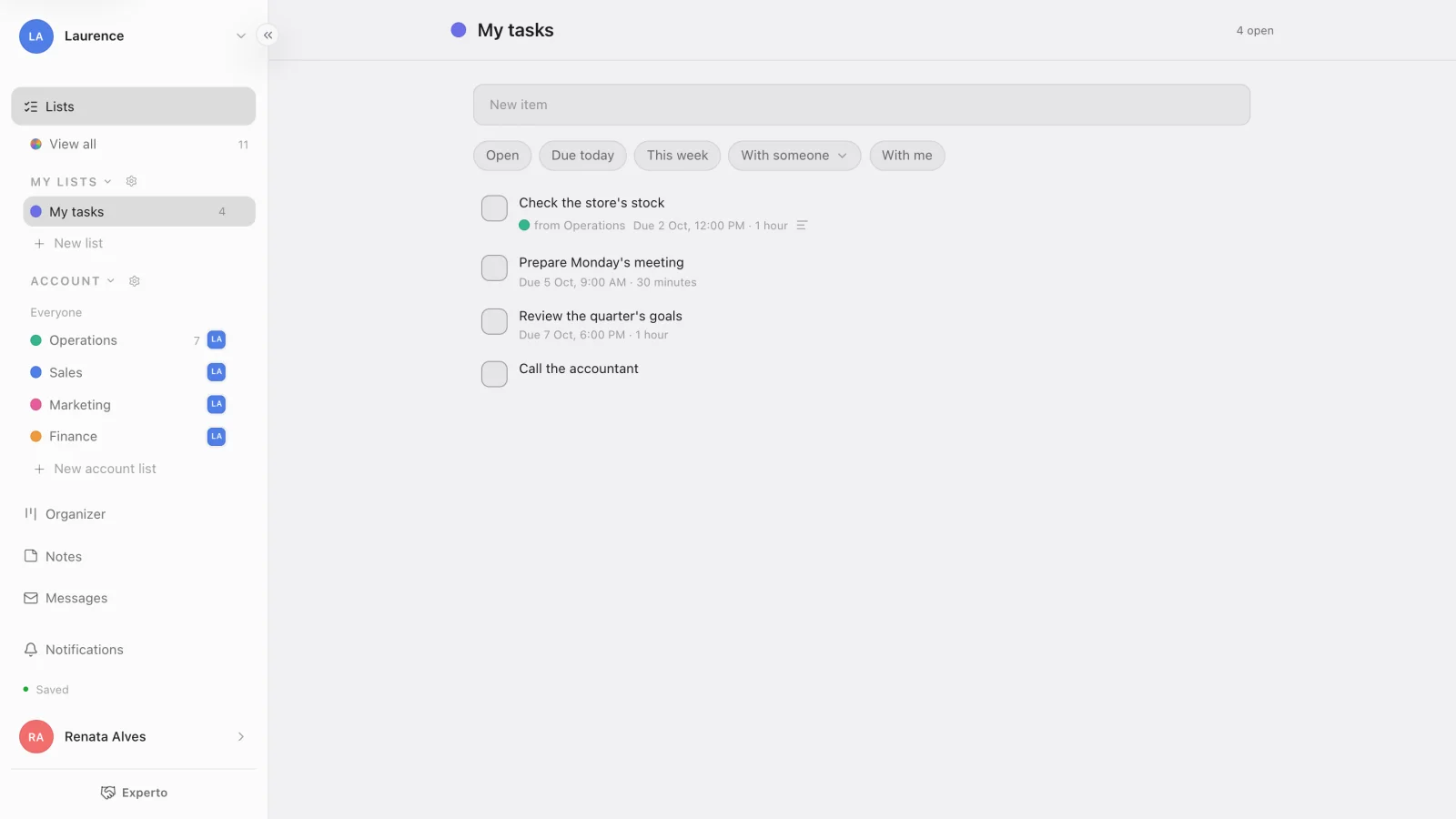
The task stays in the team list. There, the whole team sees who has it, and nobody takes the same thing: whoever tries sees "Already with" and the person's name.
4. Done? Complete it. Can't get to it? Push it
Completing it in your list completes it in the source list, and it's off your plate. Right away you see "Completed · Pushed: back to Operations", with Undo in case you clicked by mistake.
If the team list is connected to another one, the task moves on to the next stage by itself.
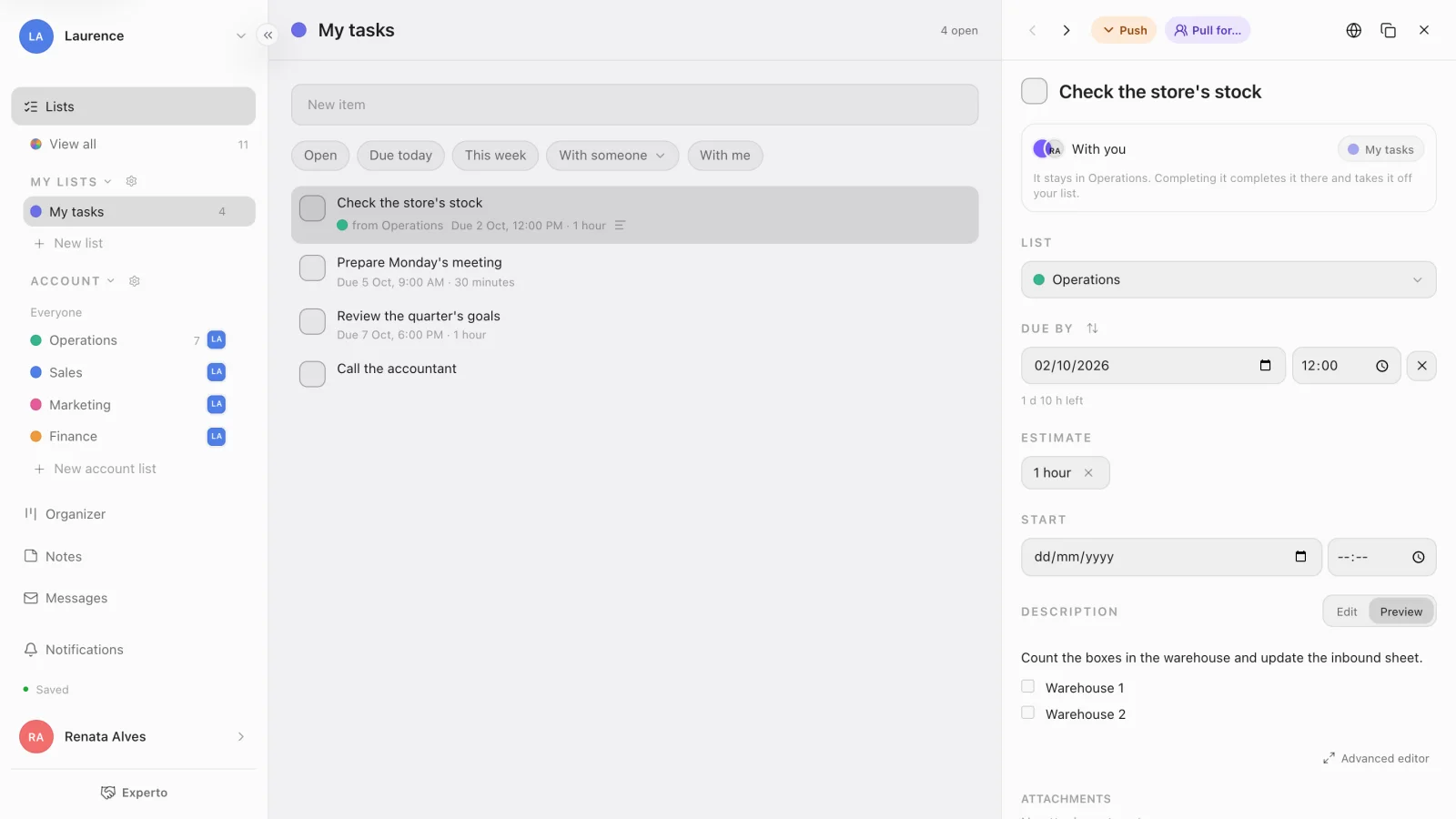
Not going to make it? Click Push, the orange capsule where Pull used to be. The task goes back to the team list, free for someone else to pick up.
What changes for the team lead
The lead stops handing out work and starts following it. A few tools help with that:
- With someone and With me: list filters to see what each person has, or just what's with you.
- Notifications: whoever has a task is notified when someone else edits, completes, moves or pushes it.
- Pull for…: whoever manages the list can give the Pull to someone else when something needs to go to a specific person.
- Organizer: the people column shows each person's workload, and you can drag a task onto whoever is free, as in the post on how to plan your team's week.
On your computer, Experto for Mac and Windows keeps your list for the day on the edge of the screen, one click away.
Team agreements that make task distribution work
Pull and Push works best when the team agrees on a few rules from day one. A suggestion:
- A task without a Pull is free. Whoever has time takes it.
- Pull what you're going to do now, and leave the rest in the team list.
- Push without guilt: handing it back early beats holding on to a stalled task.
- Once a week, review together what each person has.
- For someone who just joined, the tasks in the onboarding checklist make a good first Pull.
The same goes for flows with stages, like the agency production template, where each person pulls the next task in the queue.
Frequently asked questions
Can I assign a task to someone in Experto?
Experto has no owner field. When something needs to go to a specific person, whoever manages the list uses Pull for… in the task details, or drags the task onto that person in the Organizer.
Can two people take the same task?
No. Each task is with one person at a time, and the whole team sees who has it. Whoever tries to pull a task that's already taken is told it's with someone else.
Can guests pull tasks?
No. Guests, like a client's contact, only see the tasks of their sub-account and can complete them, without pulling or seeing who has each task.
Want to see your team splitting the work without anyone handing it out? Create your free account, free forever for up to 2 members, and try how to split tasks in your team with Pull and Push.