Property management template: renewals and requests for every building
A template ready to import into Experto, with each building's requests, recurring maintenance and the building manager approving in one click.

This template sets up condominium management in Experto for an entire property management firm: each building's requests, from the resident's message to the follow-up, and the maintenance and renewals that keep coming back. Building managers approve quotes and confirm services with one click, without paying anything.
Download the file, import it into your firm's account and test it with a fake building before inviting your building managers.
Why renewals slip and requests disappear
With dozens of buildings in a portfolio, scattered information is what gets in the way. Requests come in through the building manager's chat, the firm's email and the front desk. The fire safety certificate's expiry date lives in a spreadsheet only one person opens.
In the end, the building manager takes the heat. In Brazil, for example, the Civil Code makes them responsible for looking after the common areas and for the building insurance, which is mandatory (articles 1,346 and 1,348). The same article 1,348 lets them hand the administrative work to someone else, with the owners' approval, and that's where the management firm comes in.
The symptoms tend to be the same:
- a resident opens the same request through several channels;
- nobody knows who took the request;
- a service gets paid without anyone confirming it was done;
- the insurance or the fire certificate expires without anyone noticing.
How the template organizes condominium management
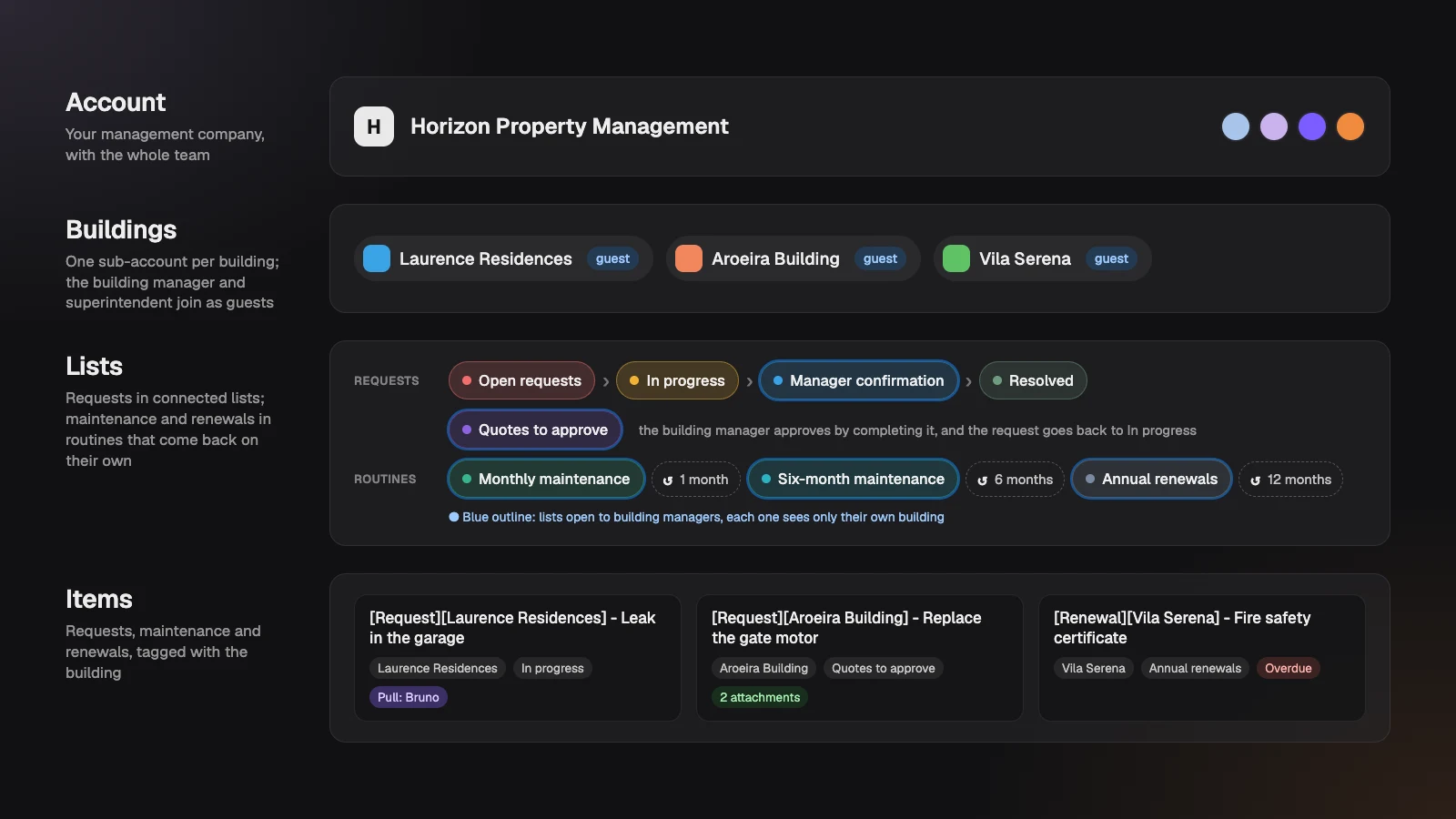
The template splits the work into two flows: requests, which come in at any time, and routines, which come back on the calendar. Everything is tagged with the building:
- Account: your management firm, with the whole team.
- Buildings: each building becomes a sub-account, with a name, color and photo of the front. The building manager and superintendent join as guests.
- Requests: connected lists, from logging the request to getting back to the resident.
- Routines: three lists connected to themselves, with each building's maintenance and renewals.
If you've seen the franchise management template, the idea will feel familiar: headquarters becomes the management firm, and each store becomes a building. The Experto for property managers page shows the same use cases, now in a template ready to import.
Requests, from the resident's message to the follow-up
Each request goes through four lists in sequence and, when needed, one more for the quote. Each list gives the request a deadline on arrival, counted in business days within your firm's working hours.
| List | What happens | Who acts | Deadline on arrival |
|---|---|---|---|
| Open requests | The request comes in and gets routed | The team | Set by whoever logs it |
| In progress | The supplier fixes it | The portfolio manager | 2 business days |
| Quotes to approve | The building manager reviews the quotes and approves | The building manager, as a guest | Set by whoever moves it |
| Manager confirmation | The building manager confirms it's done | The building manager, as a guest | 3 business days |
| Resolved | Follow-up with whoever opened it, then close | The portfolio manager | 1 business day |
In practice:
- Intake. In Open requests, turn on Receive from another tool and paste the list's address into the form your residents already use. Each submission becomes a request right away, already tagged with the building.
- Triage. Whoever handles it gives it a Pull, and the whole team sees who has it. Completing means "routed", and the request moves to In progress.
- Quote. Needs approval? Attach the quotes and use Move to… to send the request to the building manager. Once approved, it goes back to In progress with 5 business days.
- Confirmation. Once the service is done, the building manager confirms it by completing it. It's recorded who confirmed and when.
- Resolved. The portfolio manager follows up with whoever opened the request and completes it.
Every item follows the pattern [Type][Building] - Title, like [Request][Laurence Residences] - Leak in the garage. That way, anyone can find the request by searching, in the panel or in the Organizer.
Maintenance and renewals that come back on their own
Each building's routines live in three lists connected to themselves: complete an item and it comes back open with the deadline for next time. It's the same feature that turns any recurring task into a routine.
- Monthly maintenance, back in 1 month: the elevator service visit and the monthly statement for the building manager.
- Six-month maintenance, back in 6 months: water tank cleaning and pest control in common areas.
- Annual renewals, back in 12 months: building insurance, the fire safety certificate, fire extinguisher recharge and the annual general meeting.
How long the fire safety certificate is valid depends on where the building is and what kind of building it is. When it isn't one year, adjust the deadline on the item itself after completing it.
Running late? It turns red, and the tab on the edge of the screen alerts the team right away. With that, condominium management stops depending on the memory of whoever opens the spreadsheet.
What the building manager sees and does
The building manager joins as a guest and only sees what's theirs: the quotes, the confirmations and the building's maintenance calendar. They see the title, description, deadline and attachments, and nothing else from your firm.
To respond, they complete the item. In Quotes to approve, completing means "I approve"; in Manager confirmation, "it's done"; in the routines, "the service happened". The superintendent can join the same way, and both can handle it from the iPhone app.
Guests don't take a seat and are unlimited on every plan. It's the same role the client has in the creative approval workflow template for agencies: responding with a check mark, without paying for a license.
Test it before inviting your building managers
The template comes with the Start here list, a twelve-step guide to set up and test both flows. Before opening it to your portfolio, do a dry run:
- Import the template as the account admin.
- Turn on sub-accounts as Clients and create a test building.
- Invite yourself, with another email, as that building's manager.
- Pull the sample request and take it to Manager confirmation.
- Sign in as the building manager, confirm the request and approve the sample quote.
- Complete an item in Monthly maintenance and watch it come back with next month's deadline.
Ask your AI agent what's due this month
With Experto MCP, your AI agent looks at your whole portfolio at once. It works with Claude, ChatGPT and other MCP-compatible apps.
A few requests that work well:
- "What's due in the next 30 days across all buildings?"
- "Add the insurance, fire safety certificate and fire extinguisher recharge for the new building to Annual renewals."
- "Which requests have been waiting for the building manager's confirmation for more than 3 days?"
Each request creates up to 50 items, already tagged with the building. In Account context for the AI, write the buildings in your portfolio, who manages each one and your suppliers.
Left the owners' meeting with a list of next steps? See how to turn meeting notes into tasks with AI.
The admin turns on connections in Administration › AI agents and decides whether the agent can only read or also edit. The AI never deletes anything.
Download the template and import it in 3 steps
The template is an Experto file, ready to import into your firm's account.
Download the condominium management template (.json)
- Sign in to your firm's account as an admin.
- Click the gear next to My lists and choose Import lists.
- Choose the file, check the 9 lists and 22 items in the preview and click Import.
The lists arrive set to Admins only. Follow the Start here list to open the lists to your team and to building managers.
How to adapt it to your portfolio
The template is a starting point: rename, merge or add lists as you like. A few ideas:
- Another frequency: create a Quarterly maintenance list connected to itself, with 3 months.
- The board following a service: send the item's public link, which opens without an account.
- A big project in the building, like the facade or waterproofing: track the stages with the construction project management template.
Deadlines are adjusted in each list's settings, under Connected list and Estimate.
Frequently asked questions
Does the building manager pay anything?
No. The building manager joins as a guest, without taking a seat, on every plan. So does the superintendent.
Can the building manager reject a quote?
Guests approve by completing, and can leave a comment when they do. If they'd rather go with another quote, they say so in the building's own list, and the portfolio manager swaps the quote on the item.
Does it work for a professional building manager?
Yes. The account belongs to the professional manager, each building they manage becomes a sub-account, and each board can follow along through the public link.
How much does Experto cost for a management firm?
Experto is free forever for up to 2 members, with every feature. Pricing for bigger teams is on the pricing page.
Ready to see every building on one screen? Create your free account, import the template and move your condominium management out of the spreadsheet this week.