Experto Organizer: how to plan your team's week
Your team's lists side by side, every task on the right day and each person's workload on one screen. A step-by-step guide to the Organizer.

Planning your team's week means gathering everything that has to get done in the next few days, putting each task on the right day and seeing who's already working on what. This step-by-step guide shows how to plan your team's week in the Experto Organizer, with the team's lists side by side, a weekly calendar and each person's workload.
You can do all of it on Monday morning, without a side spreadsheet.
Why plan the week with the whole team
When the week isn't visible to everyone, each person finds out the priorities halfway through. The result shows up fast: tasks that slip past their due date without anyone noticing, two people doing the same thing and the team lead asking "who's on this?" in the group chat.
Clarity makes a difference. In a Gallup survey of more than 79,000 workers in the United States in 2024, only 46% said they clearly know what is expected of them at work.
Weekly team planning solves a good part of that, as long as it lives where the tasks already are.
What the Experto Organizer is
The Organizer shows the lists you choose on a single screen, as a List, in Columns or on a Calendar. It uses the lists your team already has, without copying anything anywhere else.
Before you see how to plan your team's week with it, keep in mind:
- It lives on the web, under Organizer in the menu. In the Mac and Windows apps, the profile menu has Organizer, which opens the web in your browser.
- Each person builds their own views, and nobody sees anyone else's.
- Only the lists you can already see show up. Haven't set up your team's lists yet? Getting started with Experto shows how to create lists and bring people in.
How to plan your team's week in the Organizer, step by step
There are five steps, from a new view to checking what was delivered.
1. Create a view with the team's lists
Click New view and, under Lists, check the lists that go into the plan. In the example, they're Sales, Marketing, Operations and Finance.
Then, in the view's ··· menu, use Rename to give it a name the team recognizes, like "Team week".
2. See the lists side by side in Columns
Choose Columns. Each list becomes a column, with its tasks, due dates, estimates and who each one is with.
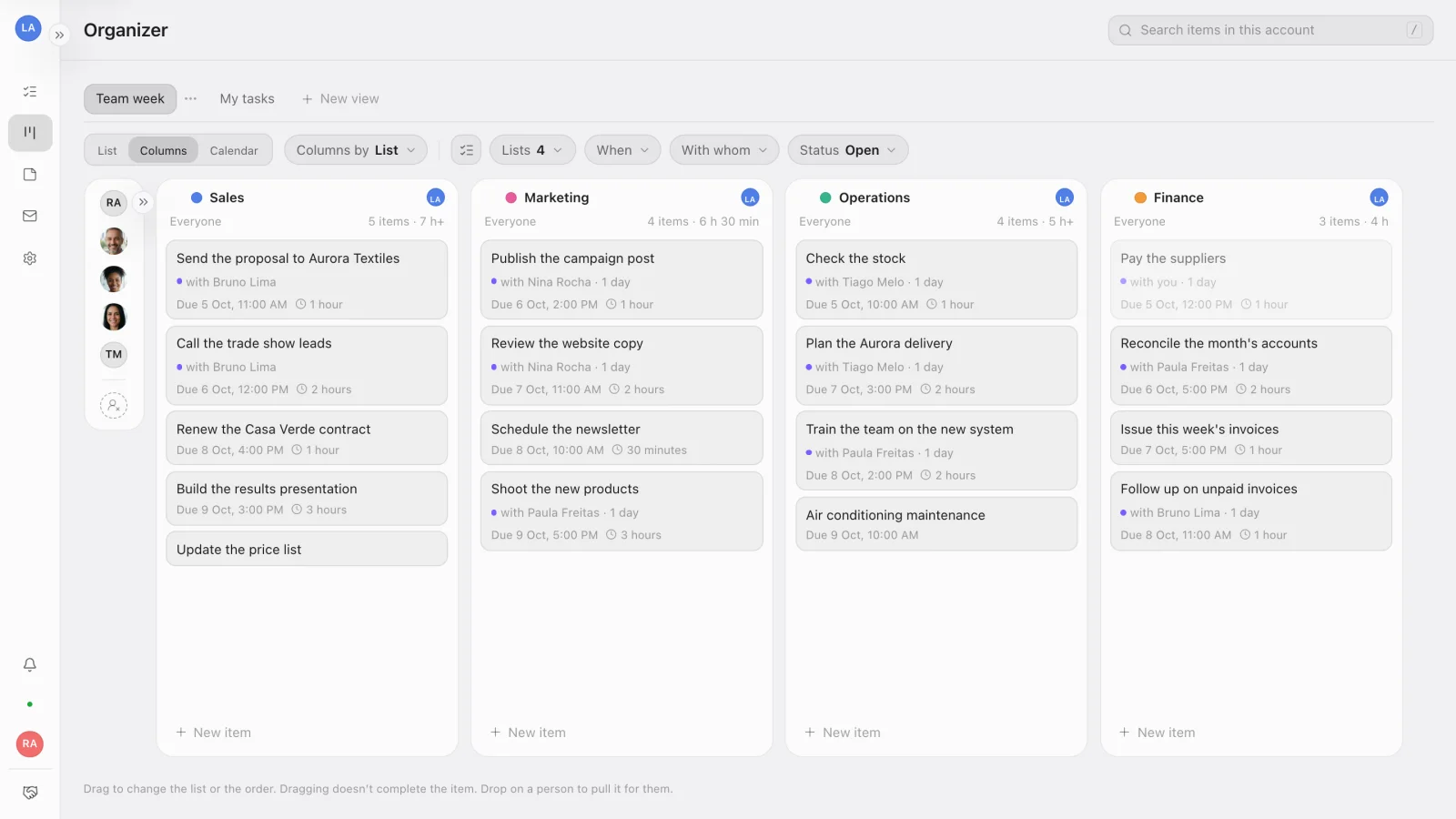
Dragging a task to another column changes its list, and dragging within a column changes the order. Dragging never completes anything.
3. Put each task on the right day in the Calendar
Switch to Calendar and pick Week and Cards. Turn on Weekdays only to hide the weekend and use the right arrow to go to next week.
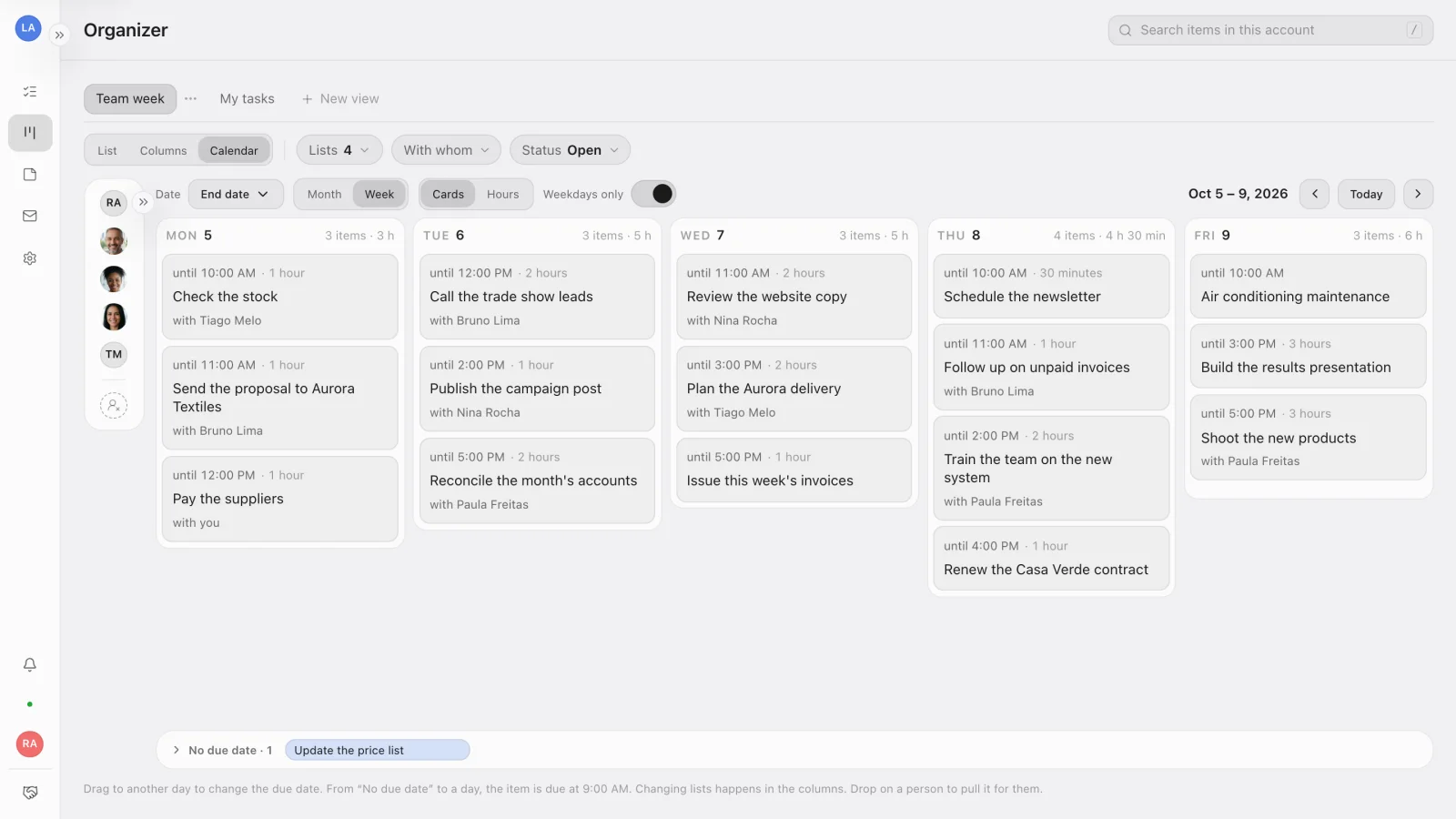
Now build the week:
- Drag a task to another day, and its due date moves with it, keeping the time.
- Anything without a due date sits in the No due date strip at the bottom. Dragged it from there to a day? The task is due at 9:00 AM.
- Under Date, choose whether the calendar shows the task's start and end, just the start or just the end.
4. See who's working on what
Go back to Columns, choose Columns by › Person and, under When, pick Next week. Each person becomes a column with what's on their plate.
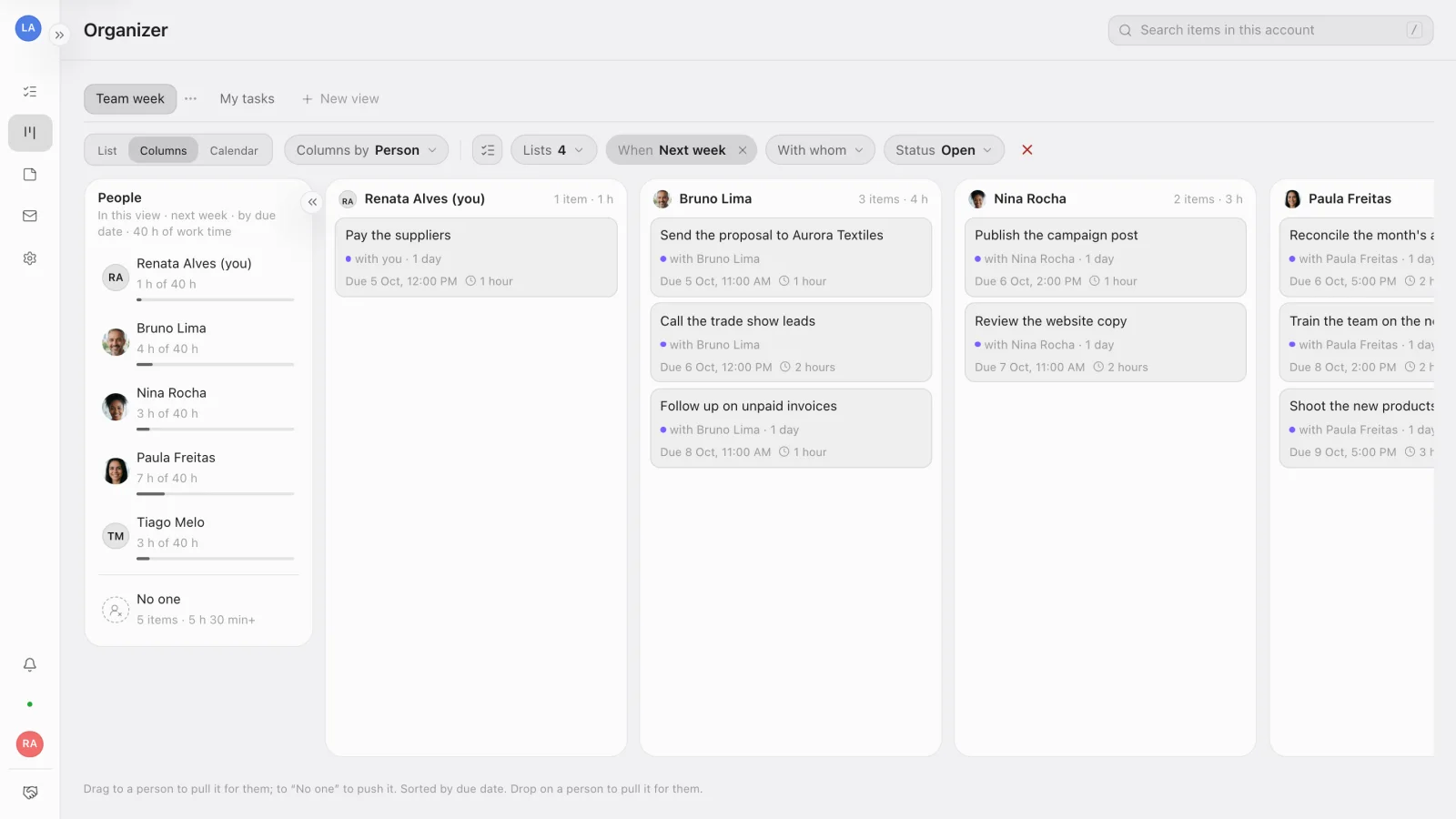
Account admins also see the people column on the left, with each person's workload for the period ("6 h of 40 h"). At the bottom sits No one, with what nobody has picked up yet. Capacity comes from the account's Business days and hours.
In Experto, nobody has to hand out tasks one by one: whoever is going to work on a task pulls it, and it lands in that person's checklist for the day, as the post on how to split tasks without assigning them explains.
Someone has nothing to do while someone else has too many hours? An admin drags the task onto the photo of whoever is free, and the Pull goes to them.
To look at one person only, use the With whom filter.
5. On Friday, check what was delivered
Under Status, switch Open to Delivered and leave When on This week. The Organizer shows every task completed in the period, who completed it and which list it came from.
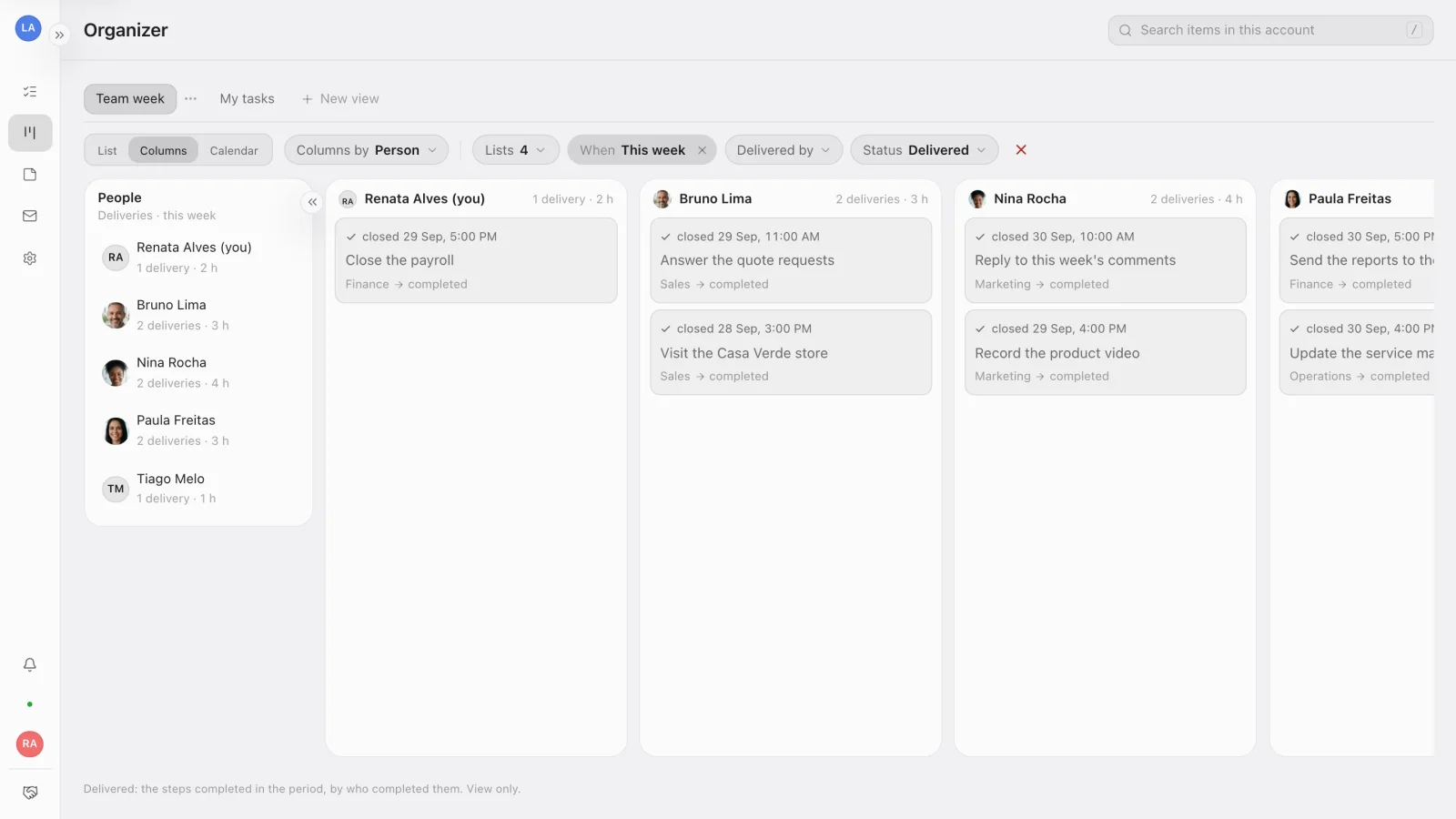
That's your weekly review, ready, with nobody putting together a report. To see what fell behind, go back to Open and pick Overdue under When.
A short routine for weekly team planning
With the view set up, planning the week becomes a short ritual. A suggested order:
- Open the team view with When on Overdue and sort out what's left from last week.
- In the Calendar, go to next week and move what's under No due date onto the days.
- Check the workload in the people column and balance out whoever has too many hours.
- Look at what's under No one: that's where the team pulls work from.
- On Friday, open Delivered and close out the week.
Tasks that repeat every week, like paying suppliers or answering quote requests, don't need to be created again. You can turn a list into a routine, as the post on recurring tasks in Experto shows.
If your team works in stages (request, execution, review, delivery), connected lists move the task to the next list as soon as someone completes it. The agency production template shows that flow already built, and the same logic works for companies with several departments.
Frequently asked questions
Does the Organizer work on my phone?
No: it needs a wide screen and lives on the web, on your computer. On your phone, your lists are in the iPhone app, and on your computer Experto for Mac and Windows keeps your lists one click away, on the edge of the screen.
Do I need to assign an owner to every task?
No. Experto has no owner field: whoever is going to do it pulls it, and the whole team sees who each task is with. Admins can still give the Pull to someone else by dragging the task onto them in the Organizer.
How much does the Organizer cost?
The Organizer is in every plan, and Experto is free forever for up to 2 members. Prices for larger teams are on the pricing page.
Ready to see your team's whole week on one screen? Create your free account, build your first view and learn how to plan your team's week in a few minutes.