Getting started with Experto
Create your first list, bring in your team, share what makes sense and see everything in one place. The step-by-step guide to get going today, effortlessly.
Just created your account and already know how to add an item? Great, the app's own tutorial covers that. Now it's time to bring your team in and put everything in its place. There are six steps, and the video above shows each one in just over a minute.
1. Your lists are yours alone
Every list starts private. Click + New list, give it a name (Marketing, for example) and add your tasks. The top of the list shows Only me, because no one sees anything until you share it.
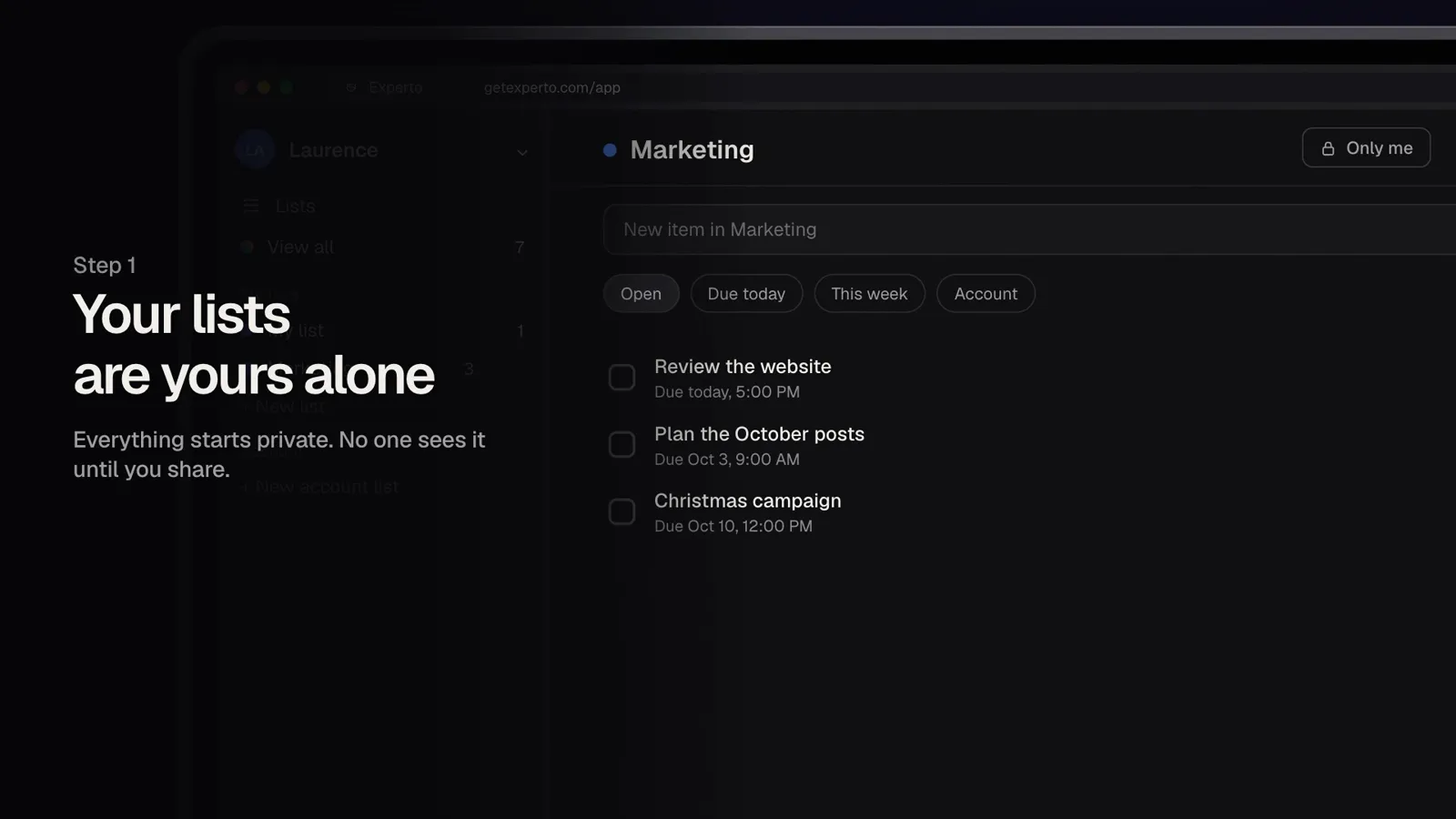
Use your lists to organize your day without worrying about who's looking.
2. Bring in your team
Go to Administration › People, click Invite, type each person's email and choose their role: admin or member. Once they accept the invitation, their status changes to joined.
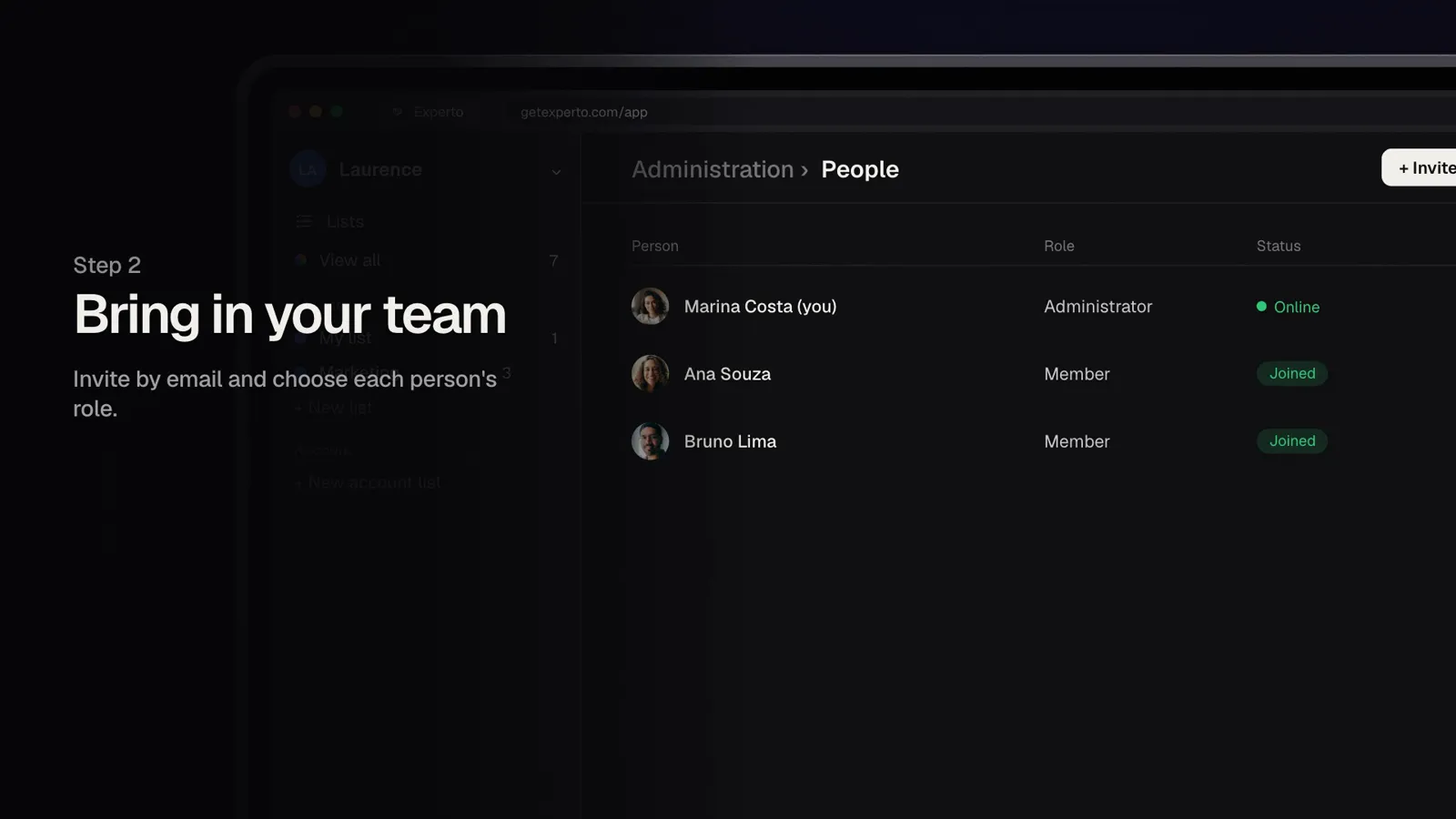
You can even limit invitations to your company's email addresses, in the account settings.
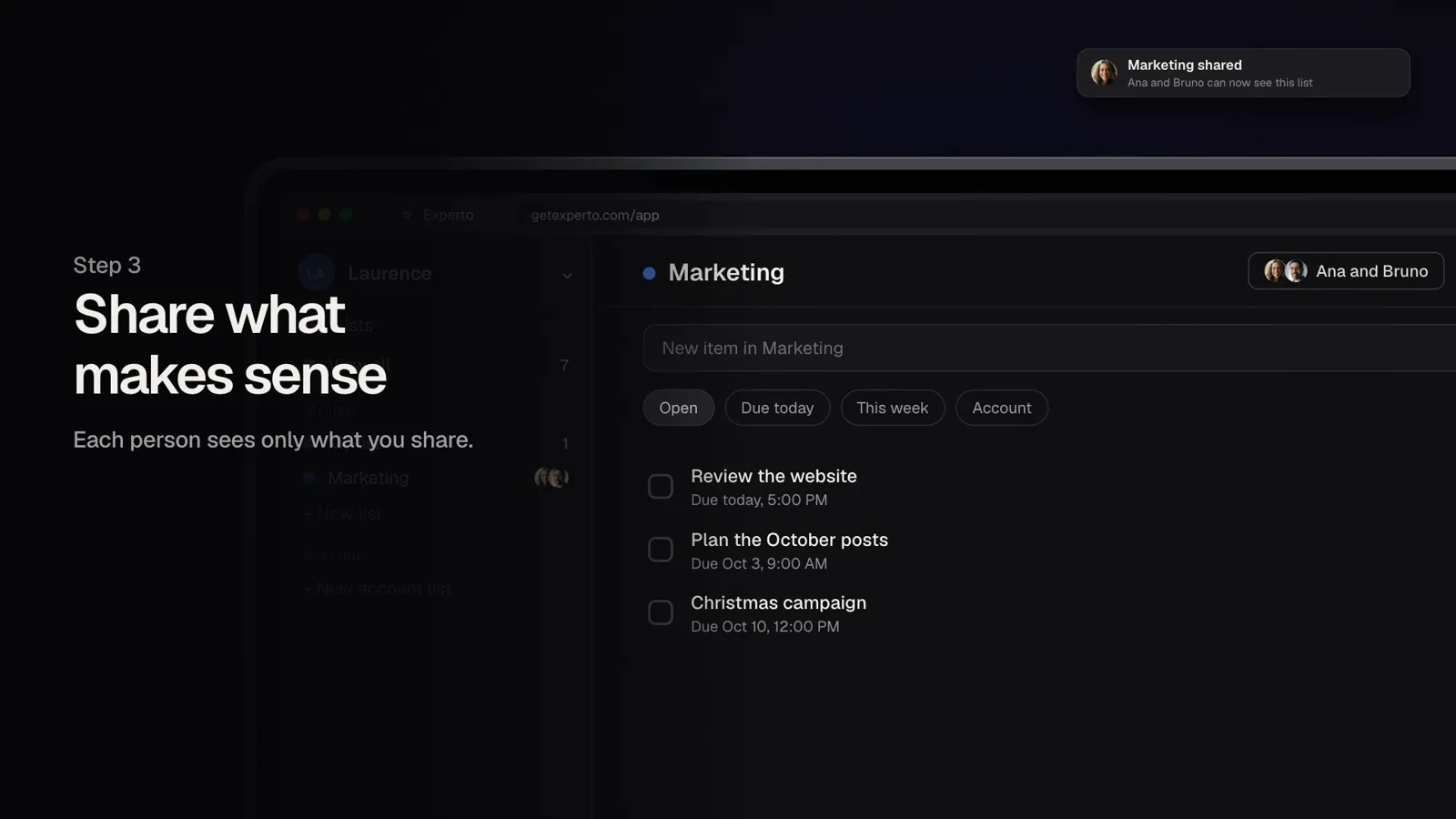
3. Share what makes sense
Open the list, click Share and pick Specific people. For each person, you decide whether they can edit or only view. The list shows up for the people you chose, and each person sees only what you share.
4. Lists for the whole team
Some things belong to everyone, like team notices or the sales list. That's what account lists are for, created by admins with + New account list. For each one, you choose who's in: Whole account, Several people or Admins only.
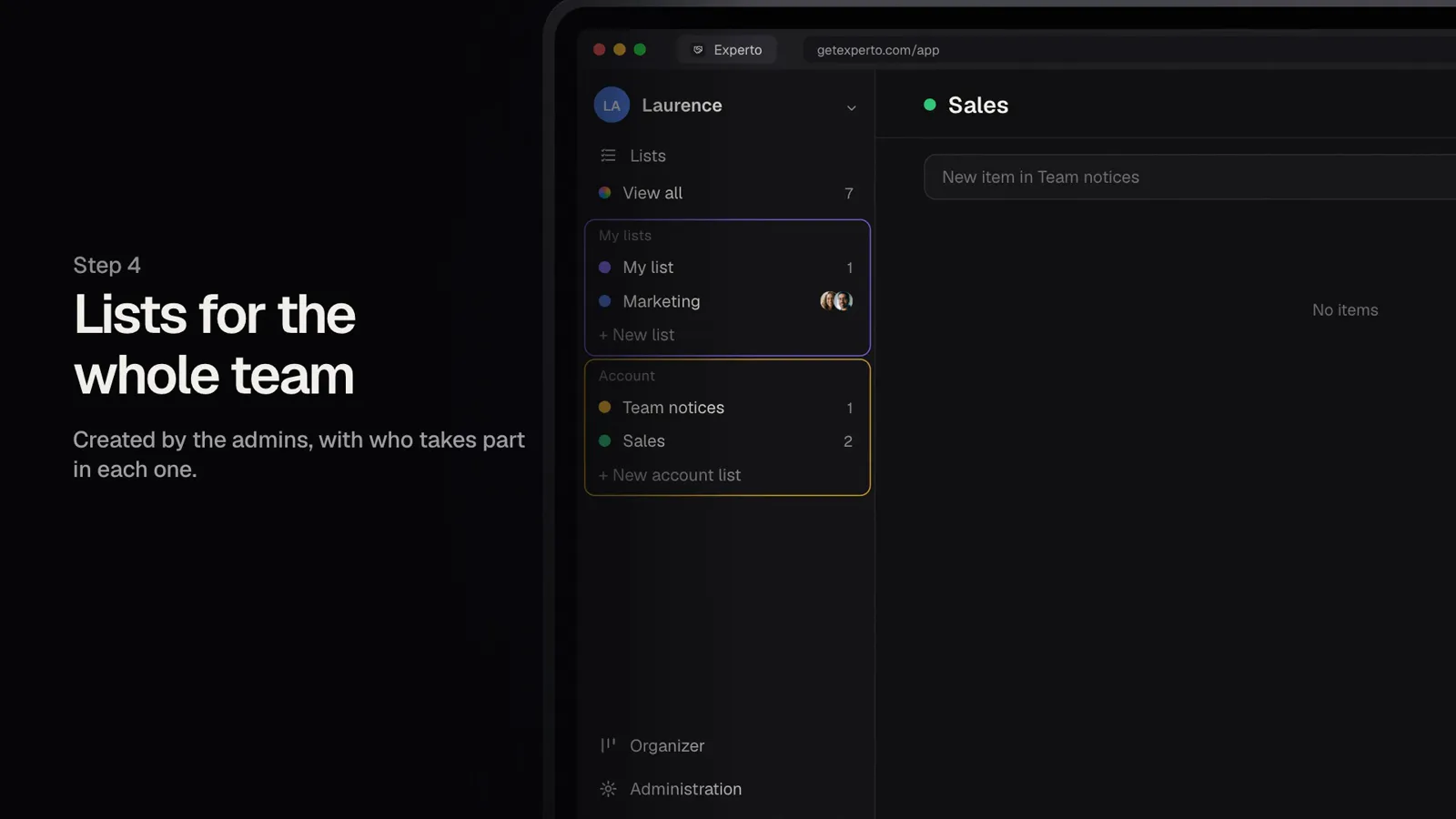
In the sidebar, your lists sit under My lists, and the team's lists sit under Account.
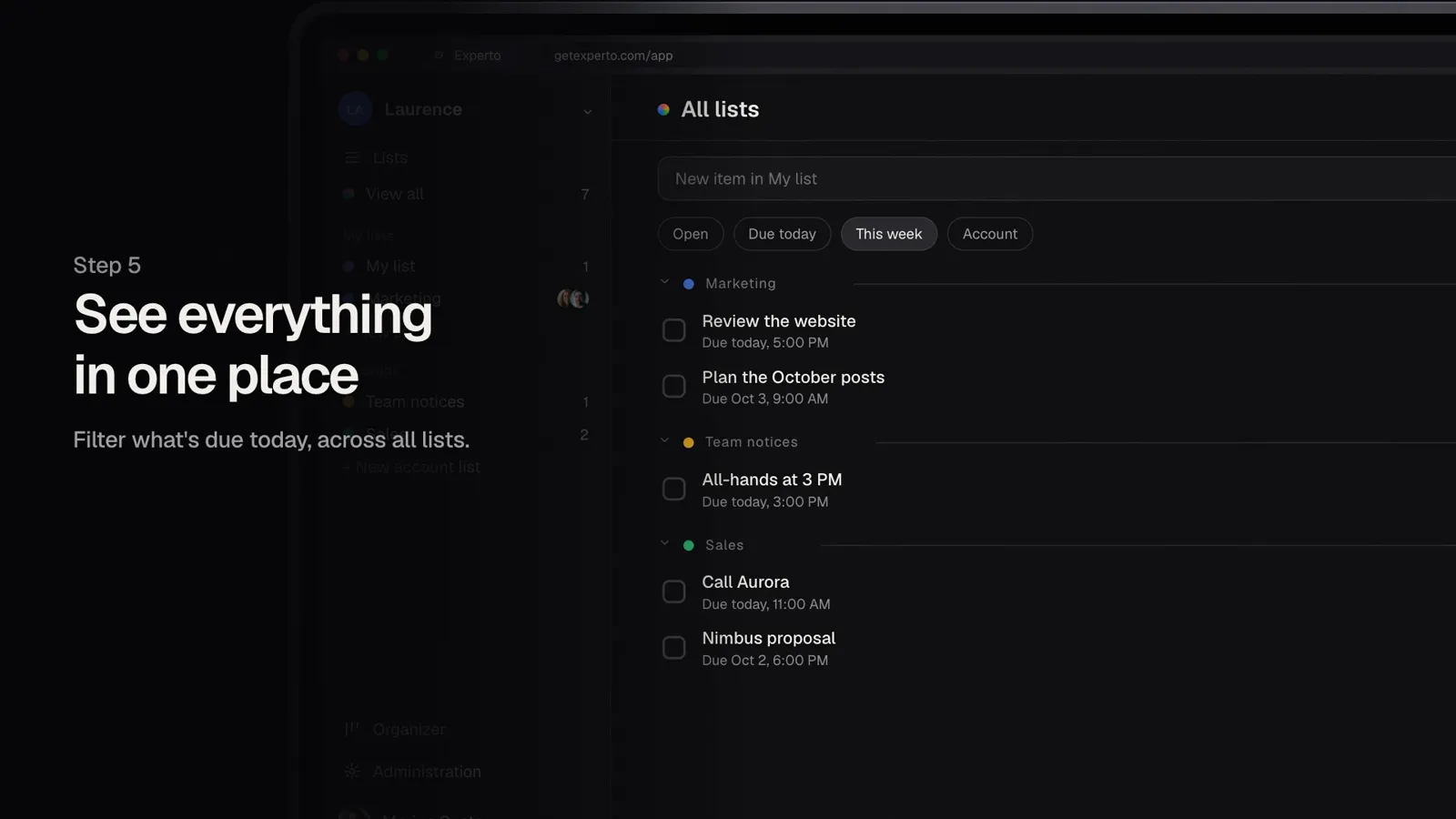
5. See everything in one place
Click View all to bring the tasks from every list into a single screen. Filters help you focus: Due today shows what's due today, and This week shows what's coming up in the next few days.
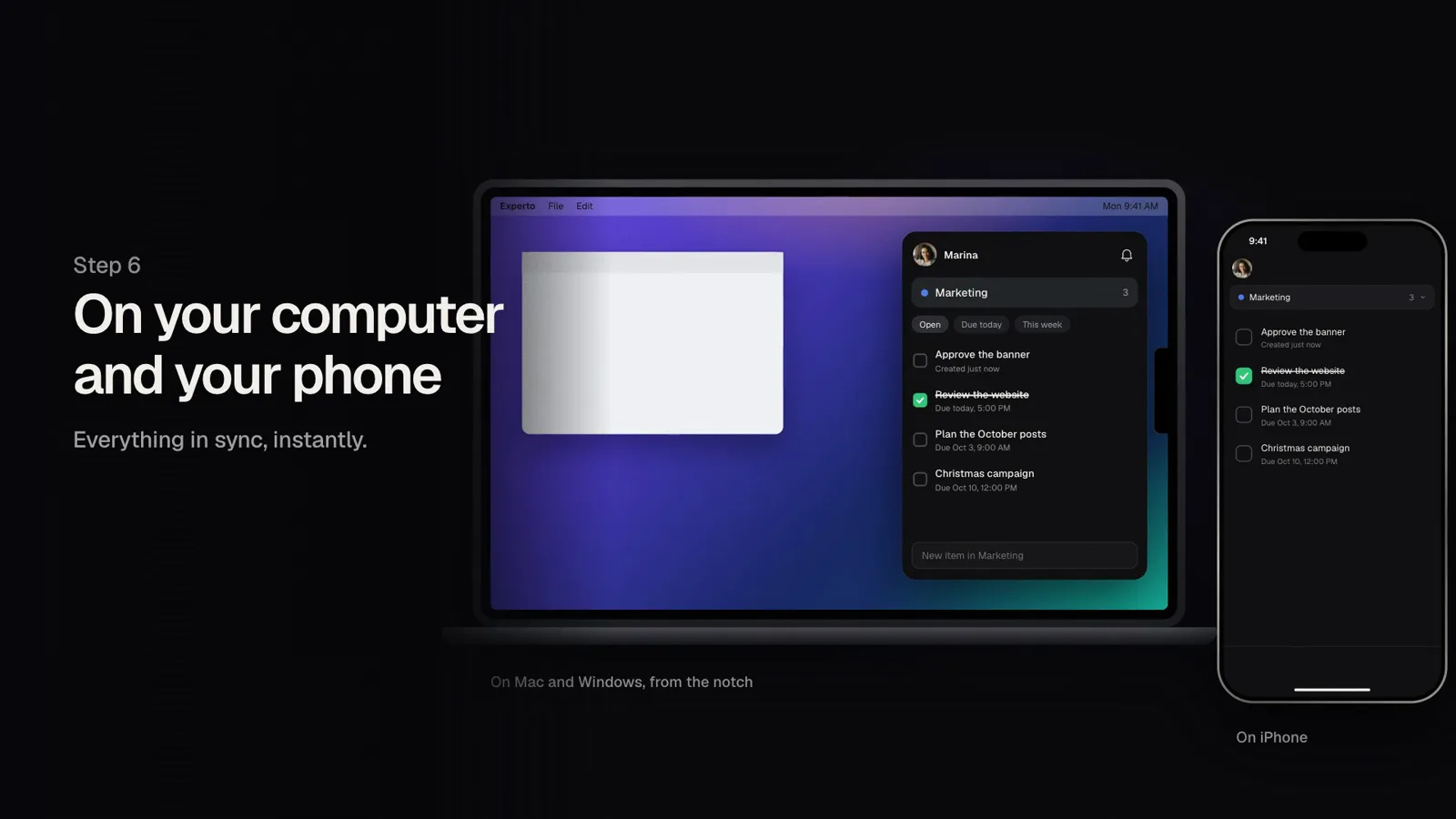
6. On your computer and your phone
On Mac and Windows, Experto lives in a discreet tab on the edge of your screen: one click and the panel opens on top of any app. On your phone, the iPhone app shows the same lists. Completed a task in one place? It shows up completed everywhere, instantly.
Frequently asked questions
How much does it cost to get started?
Nothing. Experto is free forever for up to 2 members, with every feature, and no credit card is needed. From the third member on, check the prices under Pricing.
Do I need to install anything?
No. Experto works right in your browser. If you prefer, download the app for Mac or Windows and open the panel from the tab on the edge of your screen.
Can my client follow the tasks?
Yes, as a reviewer of a sub-account. They see only what's theirs, complete items and don't take up a seat in your account.