Franchise template: head office and stores working in sync
Head office sends, each store completes what it did, the consultant reviews it and routines come back on their own. Download and import it.

This template sets up day-to-day franchise management in Experto: head office sends what each store needs to do, the manager checks it off when it's done and the field consultant reviews it, all in the same account. Each store becomes a sub-account, managers join for free as guests and the network's routines come back on their own, every day and every month.
Download the file, import it into the franchisor's account and test it with a make-believe store before you bring in the network.
Where the network loses its rhythm
In franchise management, the rhythm gets lost somewhere between head office and the sales floor. The campaign notice disappears in the stores' group chat, head office doesn't know who set up the window display and the consultant's visit follow-ups stay on paper.
In Zipline's 2026 State of Retail Communication and Execution Report, 63% of the 227 retail leaders surveyed in the United States and Canada said at least one in four initiatives doesn't land in stores as planned. In the same survey, 70% of frontline leaders said they lack an effective way to flag a problem to head office.
The warning signs are usually these:
- a campaign that starts on a different day in every store;
- an opening checklist nobody knows was done;
- a consultant chasing the same follow-up on every visit;
- a paid license for every manager just to follow along.
How franchise management works in Experto
The template answers three questions: which store the item belongs to, what stage it's in and who needs to act now. Each answer has its place:
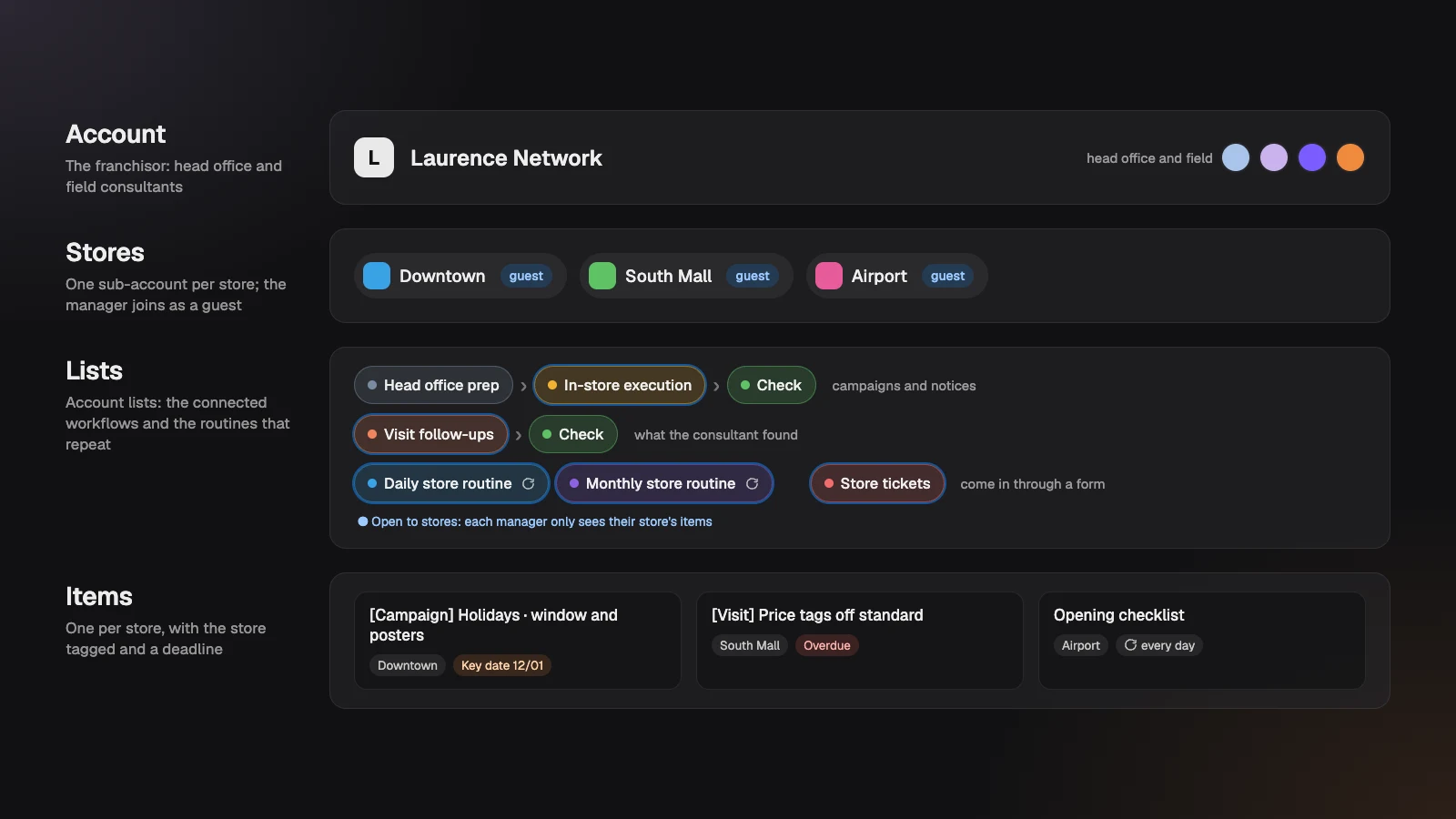
- Account: this is the franchisor, with head office, the field consultants and whoever handles marketing and purchasing.
- Stores: each store becomes a sub-account. The manager joins as a guest and only sees what belongs to their store, and a franchisee with three stores can be a guest in all three.
- Lists: each stage of the routine is an account list, connected to the next one. Routines are lists that repeat.
- Items: one per store. The holiday campaign for 30 stores becomes 30 items, and each manager completes their own.
To create all 30 at once, paste 30 lines into New item, one per store, each with its #StoreName. The step by step is in our post on how to paste multiple tasks at once. It's the same logic you'll find on the Experto for franchises page, now as a ready-to-import template.
The template's three paths
The template covers three paths: what head office sends, what the consultant finds on a visit and what the store repeats. Each list has a job:
| List | What it's for | Who completes it | Deadline on arrival | Store sees it? |
|---|---|---|---|---|
| Head office prep | Each store's materials, prices and instructions | Head office | Set by whoever creates it | No |
| In-store execution | What the store needs to do | Manager | 3 business days | Yes |
| Check | The consultant's review | Field consultant | 2 business days | No |
| Visit follow-ups | What the consultant found | Manager | Set by whoever creates it | Yes |
| Daily store routine | Opening and closing checklists | Manager | Comes back every day | Yes |
| Monthly store routine | Stock count, maintenance and month-end report | Manager | Comes back every month | Yes |
| Store tickets | Requests from the store to head office | Head office | Set by whoever handles it | Yes |
Campaigns: from head office to the sales floor
Head office creates the item in Head office prep, with the instructions in the description, the materials attached and the start day as the key date. Once the store's kit ships, someone at head office completes it, and the item lands in In-store execution with a 3-business-day deadline.
The manager sets it up, applies it and completes it, and the item moves on to Check by itself. The consultant reviews it the way your network already does, on a visit or over a video call.
Something missing? Move to… sends the item back to the store, with what's missing written in the description.
Field visits: follow-ups off paper
After the visit, the consultant adds what they found to Visit follow-ups, one issue per item, with the store tagged and the agreed deadline. The store fixes it and completes it, and the follow-up goes back to the consultant's Check list.
Network standards: routines that come back on their own
Routines are lists connected to themselves. The manager completes the opening checklist, and the item comes right back, open, due the next day; the stock count comes back due the next month. If you've never set up a routine like this, see how to set up recurring tasks in Experto.
Running late? The item turns red, and head office can spot from afar which store hasn't done today's checklist.
Tickets: the store asks, head office handles it
The manager opens a ticket through the network's form, which sends everything to the Store tickets list's address. The ticket comes in tagged with the store, someone at head office gives it a Pull, and the manager follows their ticket in the same list.
Notices: a message for the team, an item for the store
Messages with read receipts go to people in the account; for the store, the notice becomes an item.
In Administration › Messages, you write to All active, to whoever is Online now or to people you choose, and see who read it and when. Marked as Important, the message stays on screen until the person reads it. It's the channel for head office and the field consultants.
Store managers, as guests, don't get account messages. Price list changed? Create a [Notice] New price list in In-store execution for each store: completing it means the store read it and applied it.
The network's scoreboard in the Organizer
In the Organizer, lists sit side by side, and the store filter shows what's missing at each location. A few views that help:
- Campaign: search for
[Campaign] Holidaysand see which stores haven't completed it yet. - By store: group by store before a visit and bring the follow-ups ready.
- Delivered: see what left each stage this week.
Our tutorial on how to plan your team's week walks you through the Organizer step by step.
How to test before you bring in the network
The template comes with a Start here list, a ten-step guide to set up and test everything. Do a dry run before you invite the stores:
- Import the template as an account admin.
- Turn on sub-accounts with the name Stores and create a test store.
- Invite yourself, with another email, as that store's manager.
- Take the sample campaign from head office all the way to Check.
- Sign in as the test manager and complete what arrived for the store.
- Adjust each handoff's deadline to your network's pace.
That way you see the manager's screen before you invite the first real one.
The whole network's campaign in one AI request
With Experto MCP, your AI agent creates the campaign for every store in one go. It works with Claude, ChatGPT and other MCP-compatible apps.
Ask, for example: "create the holiday campaign in Head office prep for every store, one item per store, with the key date on December 1". Each request creates up to 50 items, and later you can ask "which stores haven't completed the campaign yet?".
The admin turns on connections in Administration › AI agents and decides whether the agent can only read or also edit. The AI never deletes anything.
Download the template and import it in 3 steps
The template is an Experto file, ready to import into the franchisor's account.
Download the franchise management template (.json)
- Sign in to the account as an admin.
- Click the gear next to My lists and choose Import lists.
- Choose the file, check the 8 lists and 19 items in the preview and click Import.
The lists arrive as Admins only. Follow the Start here list to open each one to the head office team and to the stores.
How to adapt it to your network
The template is a starting point: rename, remove or add lists as you like. A few ideas:
- Stores open on weekends: add Saturday and Sunday to Business days and hours, so deadlines count those days.
- Weekly routine: create an account list connected to itself, with a 1-week Estimate under Connected list.
- A new store in the network: adding the store creates its own list, a good home for the opening checklist. For the new team, use the employee onboarding checklist.
- Requests between head office departments: marketing, finance and expansion trading requests fit the interdepartmental request workflow template.
- An agency that creates your campaigns: it can work with the agency production template.
Frequently asked questions
Does the store manager pay to use Experto?
No. The manager joins as a guest, without taking up a seat, on every plan. They only see their store's items and complete what they've done.
Can the manager create items or attach photos?
No, a guest views and completes. For the store to open a request, use the ticket form. If the franchisee needs to create and edit items, invite them as an account member, which takes a seat.
How much does franchise management in Experto cost?
Experto is free forever for up to 2 members, with every feature, and guests are always free. Pricing for larger teams is on the pricing page.
Ready to put head office and the stores in sync? Create your free account, import the template and send the network's next campaign as one item for each store.