Client implementation template: clients do their part on time
A ready-to-import Experto template from kickoff to go-live, with the client's pending items in a list only they see and complete.

Every client implementation has two halves: what your team configures and what only the client can do. This template puts both into Experto, with each phase as a list, deadlines that calculate themselves and the client's point of contact seeing only their own pending items.
Download the file, import it into your account and take the sample project from kickoff to close before using it with real clients.
Where client implementation gets stuck
Most of the time, client implementation stalls on the client's side. Access wasn't granted, the setup spreadsheet came back half done and testing got pushed to "next week".
If that sounds familiar, you're not alone. In The State of Customer Onboarding 2023, Rocketlane's survey of more than 300 onboarding and implementation professionals, 74.7% said holding customers accountable is a challenge. More than half (57%) spend 2 to 5 hours a week on follow-ups alone.
The symptoms repeat:
- the project is stuck, and nobody knows since when;
- follow-ups turn into a chain of unanswered emails;
- the schedule lives in a spreadsheet only the project manager understands;
- each consultant tracks projects their own way.
How the template separates your side from the client's
The template runs on two tracks: the project card, which moves through the phases, and the client's pending items, which the client completes. Each part has its own place in Experto:
- Account: your consulting firm, or your software's implementation team.
- Clients: each client becomes a sub-account. The point of contact joins as a guest, without taking a seat.
- Project card: one item per implementation (or per module, on large projects), moving through connected phases.
- Client pending items: one item for each thing that depends on the client, in a list open to them.
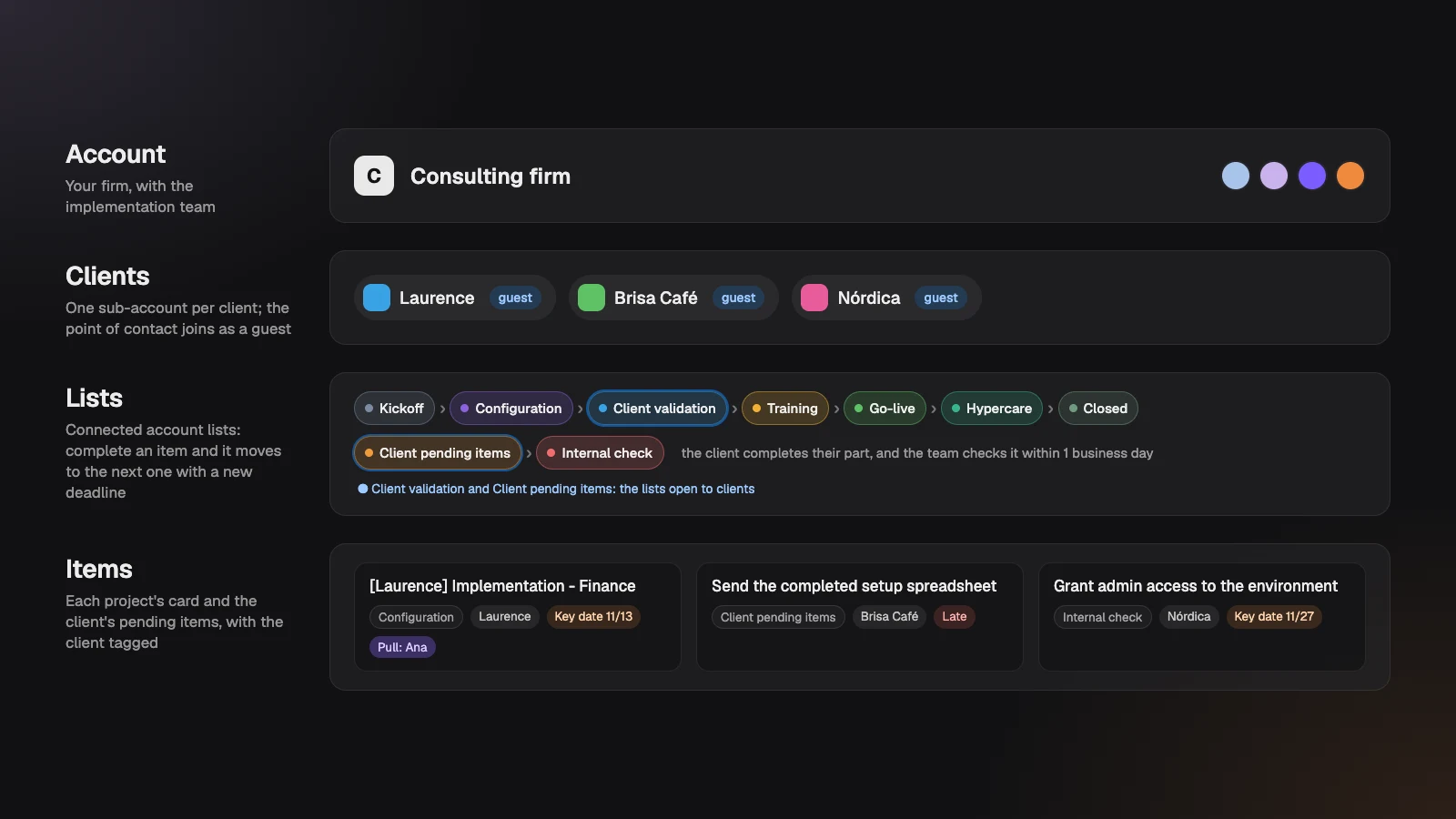
If you've seen the agency production template, the connected-list logic is the same: complete an item in one phase and it moves to the next with a new deadline. The difference is the second track, built for clients who need to deliver things on top of approving them. It's the promise of the Experto for onboarding and consulting page, now as a ready-to-import template.
Implementation phases, from kickoff to close
There are seven phases in sequence, and each one gives the card a deadline when it arrives. Deadlines count in business days, based on the working hours you set for the account.
| Phase | What happens | Who acts | Deadline on arrival |
|---|---|---|---|
| Kickoff | Sales handover, meeting and pending items created | Project manager | Set at creation |
| Configuration | Setup, data import and integrations | Consultant | 10 business days |
| Client validation | Testing in the staging environment and sign-off | The client, as a guest | 5 business days |
| Training | Key users and the client's team | Consultant | 3 business days |
| Go-live | The switch to production | Implementation team | 2 business days |
| Hypercare | Close follow-up after the switch | Consultant | 10 business days |
| Closed | Closing sign-off and handover to support | Project manager | 2 business days |
In practice:
- Kickoff. The card starts here, with the client tagged and the go-live date as the Key date, which stays fixed while the project moves along. With your CRM connected to the list, a signed contract becomes a card on its own.
- Configuration. Whoever runs the phase Pulls the card, so it lands in that person's daily checklist and the team sees who has it. Done? Complete it and the card moves on to validation.
- Client validation. The client tests and completes the card, and completing it is the testing sign-off. Found a problem? The consultant notes it on the card and uses Move to… to send it back to Configuration.
- Hypercare. The phase many implementations skip: two weeks of close follow-up catch the problems of real first use before they turn into urgent tickets.
Added up, that's about 20 business days from the end of kickoff to go-live. Use that total to agree on the date with the client in the kickoff meeting itself.
Implementation checklist: the client's pending items
Each pending item is something the point of contact completes when they've done their part. They get notified when a new one arrives, see the deadline and the go-live date, and check it off right in Experto.
The pending items almost every project has:
- grant admin access to the environment;
- open the VPN, firewall or remote access;
- send the completed setup spreadsheet (customers, products and suppliers);
- send the digital certificate, when the system issues invoices;
- name the key users for each team;
- approve the testing script;
- confirm the training schedule and the switch-over window.
Start the title with a verb and write the description for the client to read: what you need, how to send it and when it's done, like the three pending items in the template.
When the client completes one, it goes to Internal check with a deadline of 1 business day, and the team confirms the access works and the spreadsheet is complete. Something missing? Note it in the description and use Move to… to send the item back to the client.
Accounting firms live the same back-and-forth with each month's documents, and the accounting firm document checklist solves it with the same logic.
An implementation schedule without a spreadsheet
Your implementation schedule lives in the lists themselves: the Key date holds the go-live, and each phase holds its own deadline. Running late? The item turns red, and the tab on the edge of your screen lets you know.
Three ways to keep track:
- In the Organizer: put the phases side by side, in columns, and see how many projects sit in each one and who has each card.
- With the client filter: across all lists, see only one client's items and what's late.
- In the item's history: each item shows the stages it went through, when it arrived in each list, when it was completed and how long it took against the estimate. "How long has this been with the client?" finally has an answer.
What the point of contact sees
The client joins as a guest and sees only the lists open to them, like Client pending items and Client validation, with their own company's items. Title, description, deadlines, Key date and attachments, and nothing from the rest of your operation.
To do their part, the client completes the item, on the web or in the iPhone app. The item moves to the next list, and the consultants named on the list get the Guest completed notification in the bell.
Guests don't take a seat and are unlimited on every plan, so the client pays no license to follow the implementation.
One thing to watch: in Client validation, the client reads the card's description. Keep the testing script there and put anything internal in a note shared with the account.
From kickoff notes to pending items, with AI
With Experto MCP, your AI agent turns the kickoff notes into the client's pending items. It works with Claude, ChatGPT and other MCP-compatible apps.
Paste the transcript and ask: "create Laurence's pending items in Client pending items, with a 3-business-day deadline and the go-live as the Key date". Each request creates up to 50 items, already tagged with the client. The step-by-step is in our post on how to turn meeting notes into tasks with AI.
An admin turns on connections in Administration › AI agents, and the AI never deletes anything.
Download the template and import it in 3 steps
The template is an Experto file, ready to import into your account.
Download the client implementation template (.json)
- Sign in to your account as an admin.
- Click the gear next to My lists and choose Import lists.
- Choose the file, check the 10 lists and 15 items in the preview and click Import.
The lists arrive set to Admins only. The Start here list has 11 steps to open the phases to your team, the pending items to the client and test everything with a test client.
How to adapt it to your implementation
Rename, remove or add phases as you like. A few ideas:
- Ready-to-use software, with no heavy setup: merge Configuration and Training into one phase.
- Large data migration: add a Migration phase between Configuration and Client validation.
- Projects with physical installation: see how the construction project management template handles inspections and the owner's sign-off.
Adjust it all in each list's settings, under Connected list and Estimate.
Frequently asked questions
What's the difference between client implementation and client onboarding?
Many companies use the two terms for the same thing. When there is a difference, implementation is the technical part (configure, migrate data, train and switch over), and client onboarding is the whole journey until the client uses the product well. Bringing a new person onto your team follows another script, like the employee onboarding checklist.
Does the client have to pay to take part?
No. The point of contact joins as a guest, without taking a seat, on every plan. They only see their own company's items and complete what's theirs.
How long does a client implementation take?
It depends on the scope. The template uses about 20 business days from kickoff to go-live, plus two weeks of hypercare, as a starting point for small and mid-sized projects. Adjust each phase to your own track record.
How much does Experto cost for implementation teams?
Experto is free forever for up to 2 members, with every feature. Pricing for larger teams is on the pricing page.
Ready to stop chasing clients by email? Create your free account, import the template and put your next client implementation into the workflow today.