Accounting firm template: client documents on time, without chasing anyone
A template ready to import into Experto: clients check off the documents they sent, and the monthly close runs in a cycle, with a deadline per stage.

This template sets up an accounting firm document checklist in Experto, from the request to the client all the way to delivering the tax forms. Each client marks that they sent statements, invoices and the month's payroll changes, and the firm sees who's missing without sending a single message.
Download the file, import it into your firm's account and run a test cycle with a fake client before you bring in your whole client base.
The close gets stuck before it starts
No month-end close starts until the documents arrive, and that's where the firm's month stalls. Half the clients sent everything. The other half replies "sending it soon" over chat, and the missing statement shows up after the taxes are done.
The size of the client base adds weight. In the Sescon-SP 2024 Price and Services Survey, accounting firms in the state of São Paulo, Brazil, serve 187 active clients on average, and 33% of them don't charge for rework.
The symptoms tend to be the same:
- the team chases documents one client at a time, every month;
- the request gets lost in the middle of a group chat;
- a late document turns into work done twice, for free;
- deadlines live in a spreadsheet nobody opens.
How the accounting firm document checklist works
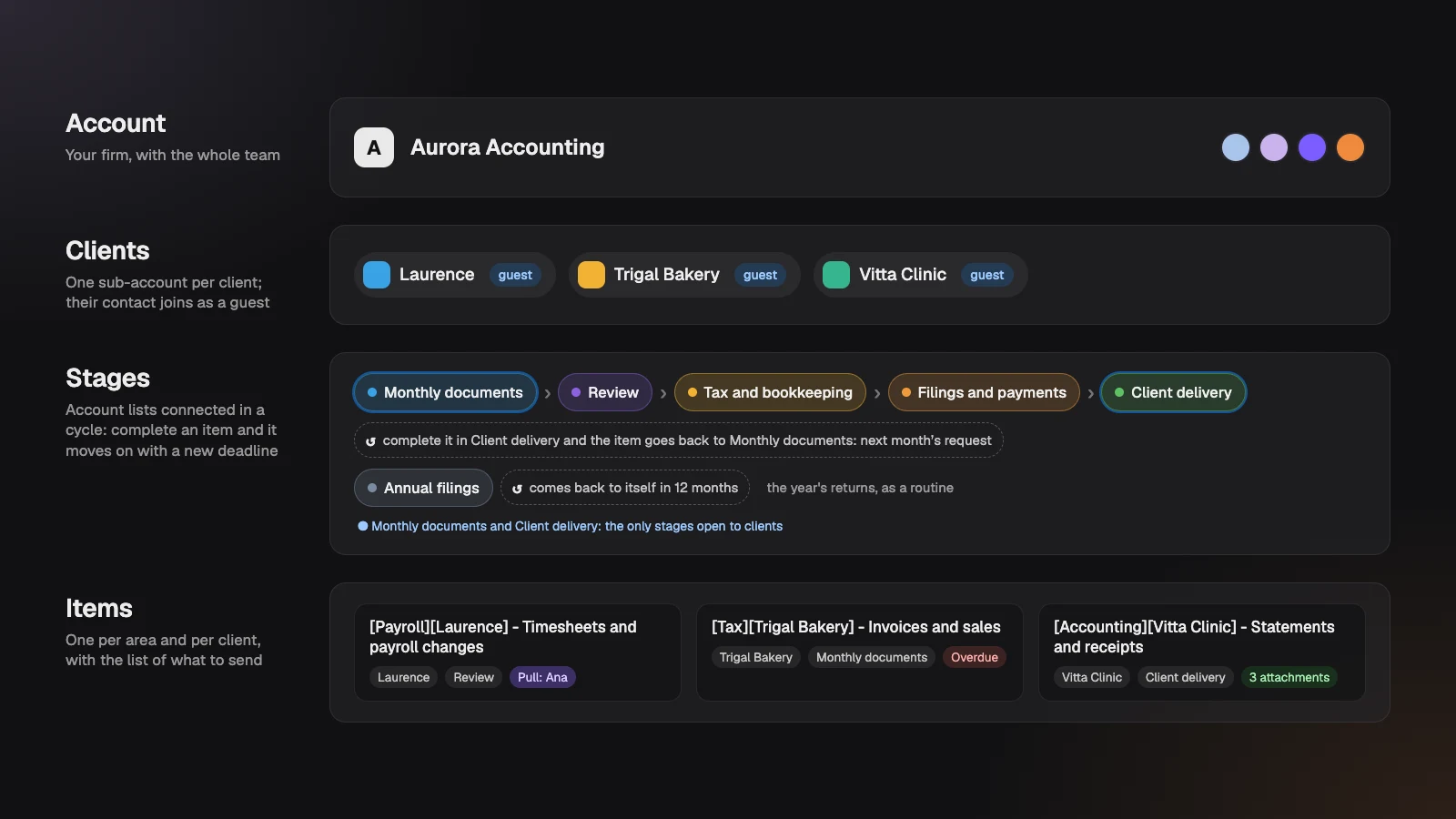
The template separates four things: the firm, the clients, the steps of the close and what each area needs to receive. Each one has its place in Experto:
- Account: your firm, with the whole team. If it's still empty, getting started with Experto shows how to bring everyone in.
- Clients: each client becomes a sub-account, with a name, color and photo. Whoever handles documents on their side joins as a guest.
- Stages: each step of the close is an account list, connected to the next one.
- Items: each client has one item per area (Payroll, Tax and Accounting), with the list of what to send in the description.
The foundation is the same as the creative approval workflow template for agencies, with one difference that changes everything: here the workflow loops around and starts over the next month. It's the logic of the Experto for accounting firms page, now in a template ready to import.
The closing cycle, stage by stage
There are five stages in a cycle plus one separate routine, and each gives the item a deadline on arrival. Deadlines count in business days, based on the working hours you set for the account.
| Stage | What happens | Who acts | Deadline on arrival |
|---|---|---|---|
| Monthly documents | The client completes it once they've sent everything | The client, as a guest | 3 weeks, on the way back |
| Review | Checks that everything arrived | The item's area | 1 business day |
| Tax and bookkeeping | Taxes, payroll, entries and reconciliation | The item's area | 3 business days |
| Filings and payments | Returns filed and tax forms attached | The item's area | 2 business days |
| Client delivery | The client downloads the forms and completes it | The client, as a guest | 3 business days |
| Annual filings | The year's returns, as a routine | The item's area | 12 months after completing |
In practice:
- Monthly documents. The client reads in the description what to send, sends it through the usual channel and completes it. The item moves to Review, and whoever looks after the client base gets a notification.
- Review. Whoever checks it gives it a Pull, and the whole firm sees who has it. Missing a statement? Write what's missing in the description and use Move to… to send the item back to the client, with a deadline.
- Tax and bookkeeping. This is each area's work: Tax calculates the taxes, Payroll runs the payroll and Accounting posts and reconciles.
- Filings and payments. Before completing, attach the tax forms, filing receipts and pay stubs to the item.
- Client delivery. The client downloads the attachments and completes it. The item goes back to Monthly documents, already with the deadline for the next request.
With this cycle, your accounting firm document checklist stops depending on someone remembering to chase clients.
Why each area gets its own item
Payroll, Tax and Accounting work at different paces, so each area gets its own item. Payroll needs timesheets right at the start of the month. Bank statements can arrive a few days later without holding anyone up.
Every item follows the pattern [Area][Client] - Title:
[Payroll][Laurence] - Timesheets and payroll changes[Tax][Laurence] - Invoices and sales[Accounting][Laurence] - Statements and receipts
That way, anyone can find the item by searching, in the panel or in the Organizer. When you create it in New item, also type #Laurence: the #Laurence disappears from the title and the item comes in tagged with the client.
What the client sees and does
The client joins as a guest and only sees two lists: Monthly documents and Client delivery. They only see their own company's items, with the description and attachments.
In Monthly documents, completing means "I sent it"; in Client delivery, "I got it". Files keep going through the usual channel, and the item records when the client confirmed. They can even confirm from the iPhone app.
Guests don't take a seat and are unlimited on every plan. One account holds up to 500 clients, and the firm only pays for its own team.
Annual filings without a spreadsheet
Annual filings become a routine: complete one and the item comes back open with a deadline 12 months later. It's a list connected to itself, the feature that turns any recurring task into a routine.
The template comes with three examples:
- the company's annual tax return;
- the employees' annual income statements;
- the owners' personal income tax returns.
The last one shows up at nearly every firm: in the same Sescon-SP survey, 91% prepare personal income tax returns. Set each deadline the first year, and the routine takes care of the rest.
Test the cycle before inviting clients
The template comes with the Start here list, an eleven-step guide to set up and test the cycle. Before opening it to your clients, do a dry run:
- Import the template as the account admin.
- Turn on sub-accounts as Clients and create a test client.
- Invite yourself, with another email, as that client's contact.
- Sign in as the client and complete an item in Monthly documents.
- In Review, give it a Pull and try Move to… back to the client.
- Take the item to delivery, attaching any file in Filings and payments.
- Confirm as the client and watch the item go back to Monthly documents, with a new deadline.
Ask your AI agent who hasn't sent anything yet
With Experto MCP, your AI agent follows the close alongside your team. It works with Claude, ChatGPT and other MCP-compatible apps.
A few requests that work well:
- "Which clients haven't completed their items in Monthly documents yet?"
- "Create the Payroll, Tax and Accounting items for the new clients in Monthly documents, with the document list in the description."
- "What's overdue in Tax and bookkeeping?"
Each request creates up to 50 items, already tagged with the client. In Account context for the AI, write each client's tax regime and the item naming pattern.
Left a client meeting with a pile of next steps? See how to turn meeting notes into tasks with AI.
The admin turns on connections in Administration › AI agents and decides whether the agent can only read or also edit. The AI never deletes anything.
Download the template and import it in 3 steps
The template is an Experto file, ready to import into your firm's account.
Download the accounting firm document checklist template (.json)
- Sign in to your firm's account as an admin.
- Click the gear next to My lists and choose Import lists.
- Choose the file, check the 7 lists and 17 items in the preview and click Import.
The lists arrive set to Admins only. Follow the Start here list to open the stages to your team and the two lists to your clients.
How to adapt it to your firm's routine
The template is a starting point: rename, merge or split stages as you like. A few ideas:
- Small firm, where the same person reviews and does the taxes: merge Review and Tax and bookkeeping into one list.
- Departments with their own queue: duplicate the stages per area. For what one department asks of another, use the interdepartmental request workflow template.
- New client joining: their setup fits the client implementation template.
Deadlines are adjusted in each list's settings, under Connected list and Estimate.
Frequently asked questions
Can the client send documents through Experto?
Guests complete items and can leave a comment, but they don't attach files: documents go through the channel the firm already uses, and Experto records when the client confirmed. On the way back, the client downloads the attached tax forms straight from their list.
Does the client pay anything to take part?
No. The client joins as a guest, without taking a seat, on every plan. They only see their own company's items.
How much does Experto cost for a firm?
Experto is free forever for up to 2 members, with every feature. Pricing for bigger teams is on the pricing page.
Ready to close the month without chasing anyone over chat? Create your free account, import the template and get your accounting firm document checklist running this close.