From meeting to tasks: how to use an AI agent in Experto
Connect Claude or ChatGPT to Experto, paste the transcript and get every action item as a task, with due date and client, in the right list.

To turn meeting notes into tasks without spending the afternoon copying the minutes, connect your AI agent to Experto and paste the transcript into the chat. It creates each action item as a task in the right list, with a due date and the client tagged, so your team leaves the meeting knowing what to do.
You set it up once. After that, it's paste and ask.
Why action items get lost after a meeting
The meeting ends, everyone goes back to their screen and the action items stay in someone's notes. In Microsoft's Work Trend Index 2023, 55% of the 31,000 people surveyed across 31 countries said next steps at the end of a meeting are unclear.
In practice, the same script plays out:
- the minutes go into a doc nobody opens again;
- the deadline is "sometime next week", with no actual day;
- two people do the same thing, or nobody does;
- someone spends half an hour moving item by item into the team's tool.
What the AI agent does in Experto
With Experto MCP, your AI agent works in your lists as if it were you. It works with Claude, ChatGPT and other MCP-compatible apps. MCP is the open standard these apps use to talk to other tools.
Once the connection is allowed, the agent:
- reads your lists, your tasks and the account context;
- creates up to 50 tasks per request, with due date, start, estimate and client;
- edits, completes, reopens and moves tasks;
- answers questions like "what's still open from Tuesday's meeting?".
The AI never deletes anything. It doesn't send messages, share lists or touch the account's administration either.
Already have the action items written down and don't want to use AI? You can paste multiple tasks at once, one per line.
How to allow AI in your account
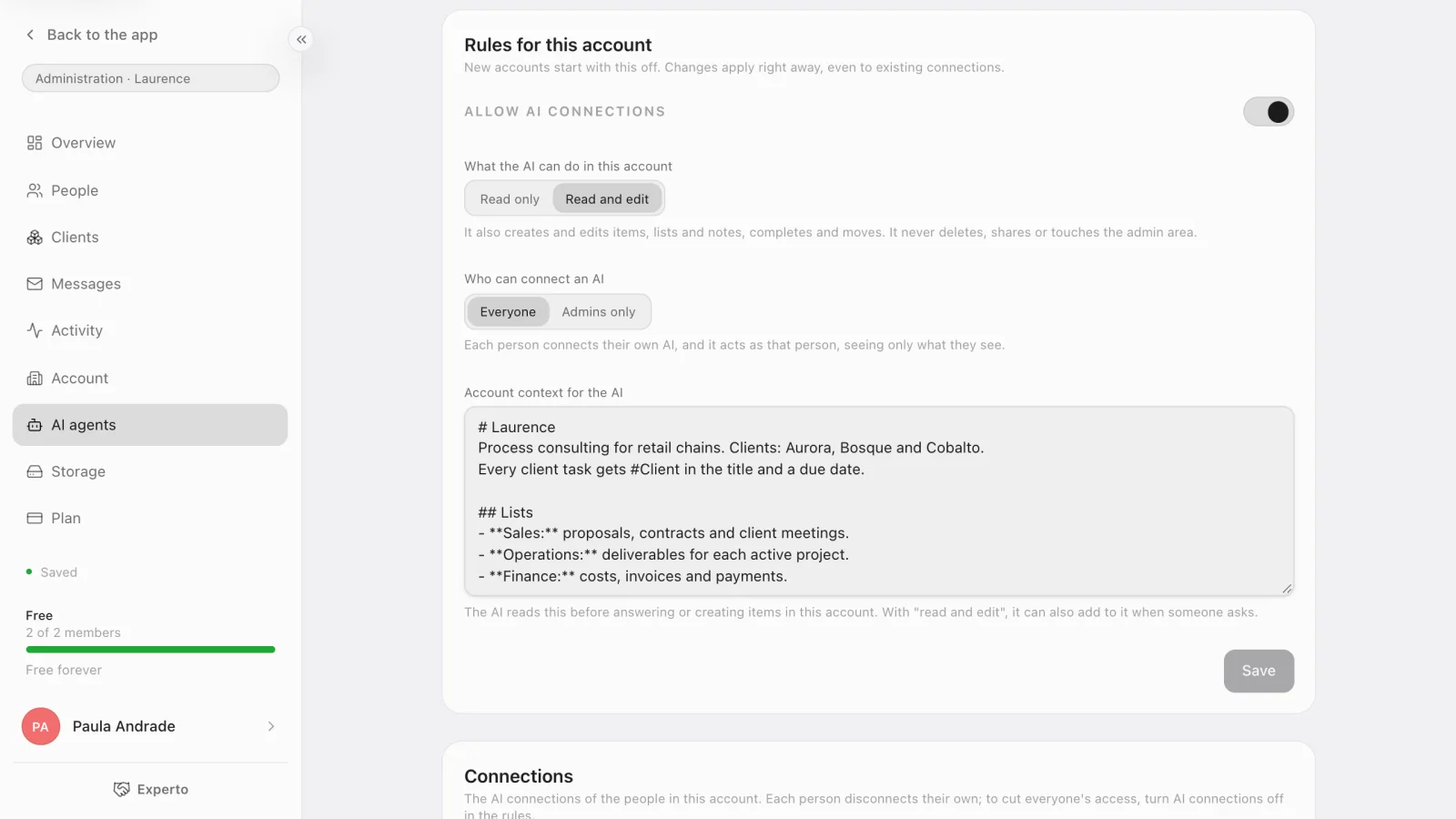
Whoever administers the account turns connections on in Administration › AI agents. New accounts start with connections off, and every rule applies right away, even to people who are already connected.
- Turn on Allow AI connections.
- Under What the AI can do in this account, choose Read and edit. With Read only, it can look things up but can't create a single task.
- Under Who can connect an AI, choose Everyone or Admins only.
- Fill in the Account context for the AI.
What to write in the account context
The context is a Markdown text the AI reads before answering or creating tasks. The more specific it is, the less you have to explain in each request. Worth including:
- who the company is and what it does;
- the name of each list and what goes in it;
- your clients, projects or units, with the names your team uses;
- house rules, like "every client task gets a due date".
How each person connects their own agent
Each person connects their own AI app, and it acts as them: it sees only what they see and follows the same permissions.
- Copy the Connector address on the AI agents page. If you're not an admin, you'll find this page in the profile menu.
- In Claude, paste it under Settings › Connectors › Add custom connector. In ChatGPT, under Settings › Connectors › Create.
- Sign in with your Experto account and click Allow.
On the same page, What the AI did (7 days) keeps a record of everything the agent did.
How to turn meeting notes into tasks, step by step
Open a new chat with the Experto connector on, paste what was said and say where the tasks go.
- Paste the meeting text into the chat.
- Say which list, which client and how to handle due dates.
- Ask to see the tasks before saving, then confirm.
- Open a task in Experto: the details show created via Claude (or the name of the app you use).
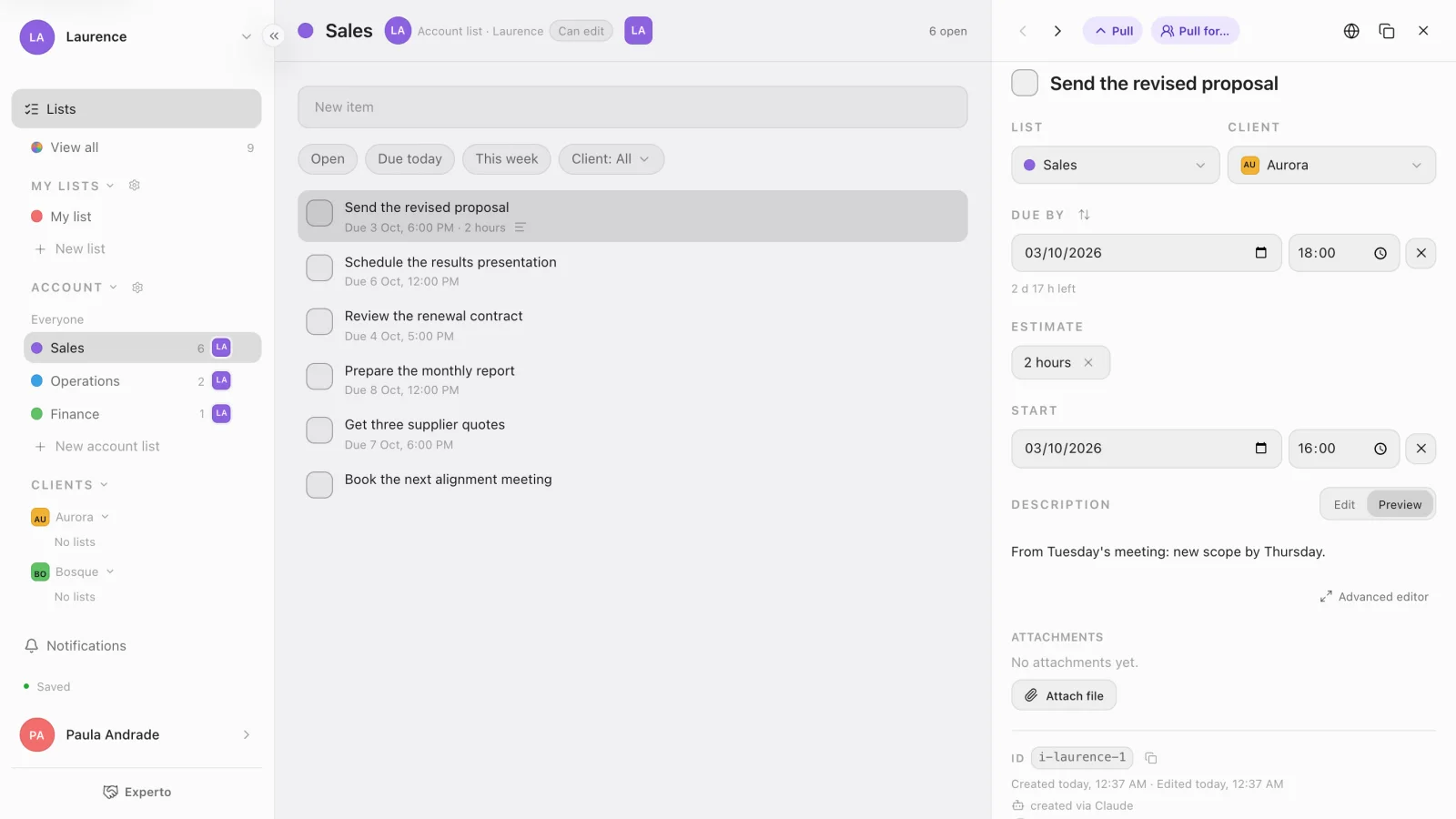
No one has to hand out what was created. Whoever is going to do it gives the task a Pull, and the list shows who has it. That's how Experto lets you split tasks without assigning an owner.
Requests that work
Copy them, swap the names and go:
- "Create a task in the Sales list for each action item from this meeting. Only add a due date when someone mentioned one."
- "Anything for the client Aurora goes in with #Aurora in the title."
- "Put the part of the conversation that led to each task in its description."
- "Before creating anything, show me the tasks as a list and wait for my OK."
- "Pull the tasks I said I'd do over to me."
Tips to get it right the first time
The AI does better when the request says where, by when and for which client each task is.
- List name: write it exactly as it appears in Experto.
- Relative dates: "by Friday" works better when you ask the AI to confirm the day before saving.
- Long meetings: each request creates up to 50 tasks. Over that? Split it in two.
Meetings that turn into the most tasks
You can turn meeting notes into tasks from any meeting that ends with action items. Some already have a ready-made template here on the blog:
- Launch planning: action items go straight into the go-to-market checklist.
- Monthly meeting with an accounting client: pending items become tasks in the accounting document checklist.
- Planning meeting at an agency: requests go into the agency production template.
- Meeting between departments: each request becomes an entry in the interdepartmental request workflow.
Frequently asked questions
Can the AI delete tasks in Experto?
No. Experto MCP has no way to delete anything. The AI creates, edits, completes, reopens and moves, always as the person who connected it.
Does it work with ChatGPT or only with Claude?
It works with both, and with any AI app that speaks MCP over HTTP with OAuth 2.1 sign-in.
Can the AI see my colleagues' private lists?
No. Each person connects their own agent, and it sees only what that person sees. Private lists and notes stay private.
Do I have to pay to use Experto MCP?
The connector comes with every plan, including the one that's free forever for up to 2 members. The AI app has its own terms, and Experto's pricing for larger teams is on the pricing page.
Ready to turn meeting notes into tasks before you even hang up? Create your free account, allow AI in Administration › AI agents and paste in your next minutes.