How to paste multiple tasks at once in Experto
Copy the list from your notes, a spreadsheet or WhatsApp and paste it into Experto: each line becomes a task, with description, due date and estimate.

To paste multiple tasks at once into Experto, copy the list from wherever it lives and paste it into the New item field or straight onto the list. Each line becomes a task, and a preview shows everything before anything is created.
Don't have a list to receive them yet? Getting started with Experto shows how to create your first one.
Where to paste your list
You can paste in two places, and both lead to the same preview.
- In the New item field, at the top of the list: click it and paste.
- Straight onto the list, without clicking any field: ⌘V on a Mac or Ctrl+V on Windows, the same copy and paste shortcuts you always use.
It works on the web and in the panel of the Mac and Windows app. Pasted two tasks or more? The Create several items window opens.
The rules to paste multiple tasks
Each line becomes an item, and a few marks at the start of the line tell Experto the rest.
| In the pasted text | In Experto |
|---|---|
| One line | One item |
-, *, •, 1. or a) at the start |
Removed from the title |
[x] at the start |
Item already done |
[ ] at the start |
Open item (the box goes away) |
| A line starting with a space or tab | Description of the item above |
| Blank line | Ignored |
Try it: click Copy list, open one of your lists and paste:
- Call the plumber
• Pay the electric bill
1. Book the dentist
[x] Renew the car insurance
Plan the weekend
  Check the weather forecast
  Book a table for Sunday lunch
You get five items: the bullets go away, the insurance comes in already done, and the two lines with a space in front become the description of the last one.
Due date, start and estimate in the same paste
Right below the item, the Start:, End: and Estimate: lines fill in its fields. They start at the margin. With a space in front, they become description.
- Start: when the task begins, like
10/19/2026 9:00 AM. Without a time, it's 9 AM. - End: the due date, in the same format. With English labels, dates read month/day.
- Estimate: how long it takes, like
30 min,3 hours,2 working daysor1 week. "2 days" on its own counts as working days. - List: only works when you paste into All lists, and sends the item to the list with that name.
Send the monthly report
 With the sales summary and the charts
End: 10/16/2026 6:00 PM
Estimate: 3 hours
Review the rental contract
Start: 10/19/2026
Estimate: 2 working days
Swap the dates for yours. With only a Start, the due date comes from the start plus the estimate. The guide on how to make a study plan uses these lines at every stage.
From a spreadsheet, your notes or WhatsApp
Copy it there and paste it here, with one tip for each source.
- Spreadsheet: select the rows without the header and copy. The first column becomes the title, and the others become the description, separated by "·".
- Notes app: copy it as it is, with bullets or numbers.
- WhatsApp: copy the message and check in the preview that only tasks came along.
- Another Experto list: select the items (⌘ or Ctrl + click) and use Copy. They land in the new list with description, dates and estimate.
So this spreadsheet row:
| Column A | Column B | Column C |
|---|---|---|
| Replace the AC filter | Meeting room | By Friday |
becomes the item "Replace the AC filter", with the description "Meeting room · By Friday".
Got meeting notes with no format at all? That's when it pays to turn meeting notes into tasks with AI: the agent reads the text and creates the items.
Check everything in the preview
Nothing is created until you check it. The Create several items window shows the text tidied up, item by item, and you can edit it right there.
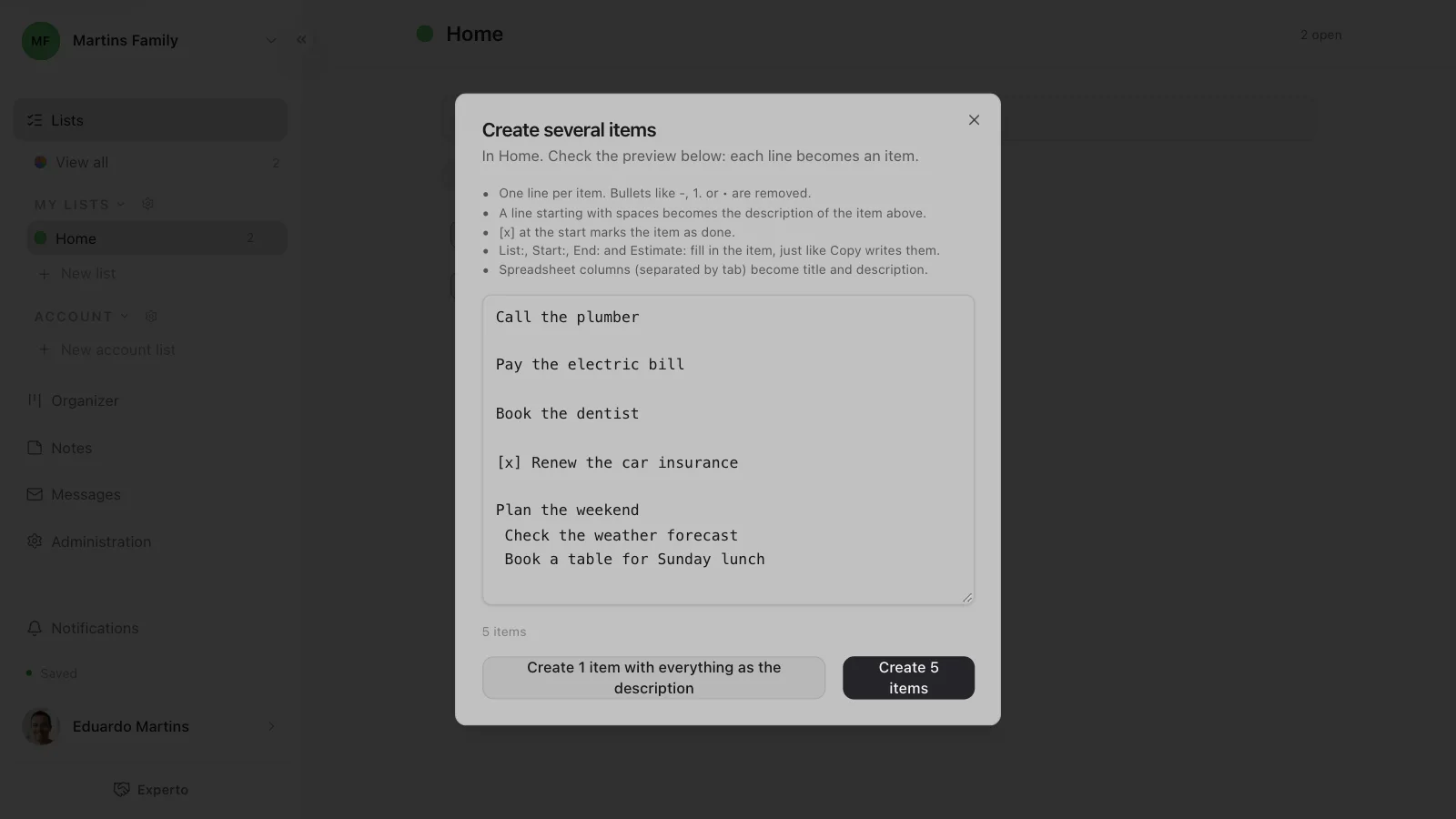
- The counter shows how many items you'll get, and the button, like Create 5 items, creates them all at once.
- Create 1 item with everything as the description keeps everything in a single item, handy for a recipe.
- The first line ends up at the top, and items with
[x]go straight to the completed ones.
Lists ready to paste
The blog has checklists in the right format, so you just copy and paste multiple tasks at once.
- the grocery list template, by store section;
- the travel checklist, from booking to coming home;
- the moving checklist, phase by phase.
Frequently asked questions
How many tasks can I paste at once?
Up to 200 per paste. If your list is longer, paste it in two parts.
Who sees the tasks I paste?
Whoever already sees the list. Every list starts private, just yours, until you share it.
Is pasting the same as importing lists?
No. Pasting creates items in a list that already exists, from any text. Import lists, in the gear next to My lists, brings in whole lists from an Experto file, like the blog templates.
Ready to get your list out of the notes app? Create your free account, paste your tasks and watch each line turn into an item.