Experto on iPhone: your lists and your team's in your pocket
Get it on the App Store, sign in with the same account and carry your lists and your team's in your pocket. See the gestures, Pull and notifications.

Want a task app for iPhone that shows the same lists as your computer, and your team's too? Experto is on the App Store: sign in with your account and carry the lists, notes and messages you have on the web, Mac and Windows in your pocket, updated instantly.
Your phone spends the day in your hand. According to the TIC Domicílios 2024 survey, by Cetic.br, 60% of internet users in Brazil went online only through their phone, and the other 40% used both phone and computer. Your task list belongs there.
How to download the app and sign in
The app is free on the App Store and uses the same account as the web. It takes less than a minute:
- Open Experto on the App Store and tap Get. It shows up as "Experto: Organize o que quiser".
- Open the app and type your account email.
- Sign in with the code that lands in your inbox. In the app, use the code, because the link in the email opens the web version.
The app needs iOS 16.4 or later. No account yet? Getting started with Experto shows how to create your first lists and bring in your team.
What you'll find on the screen
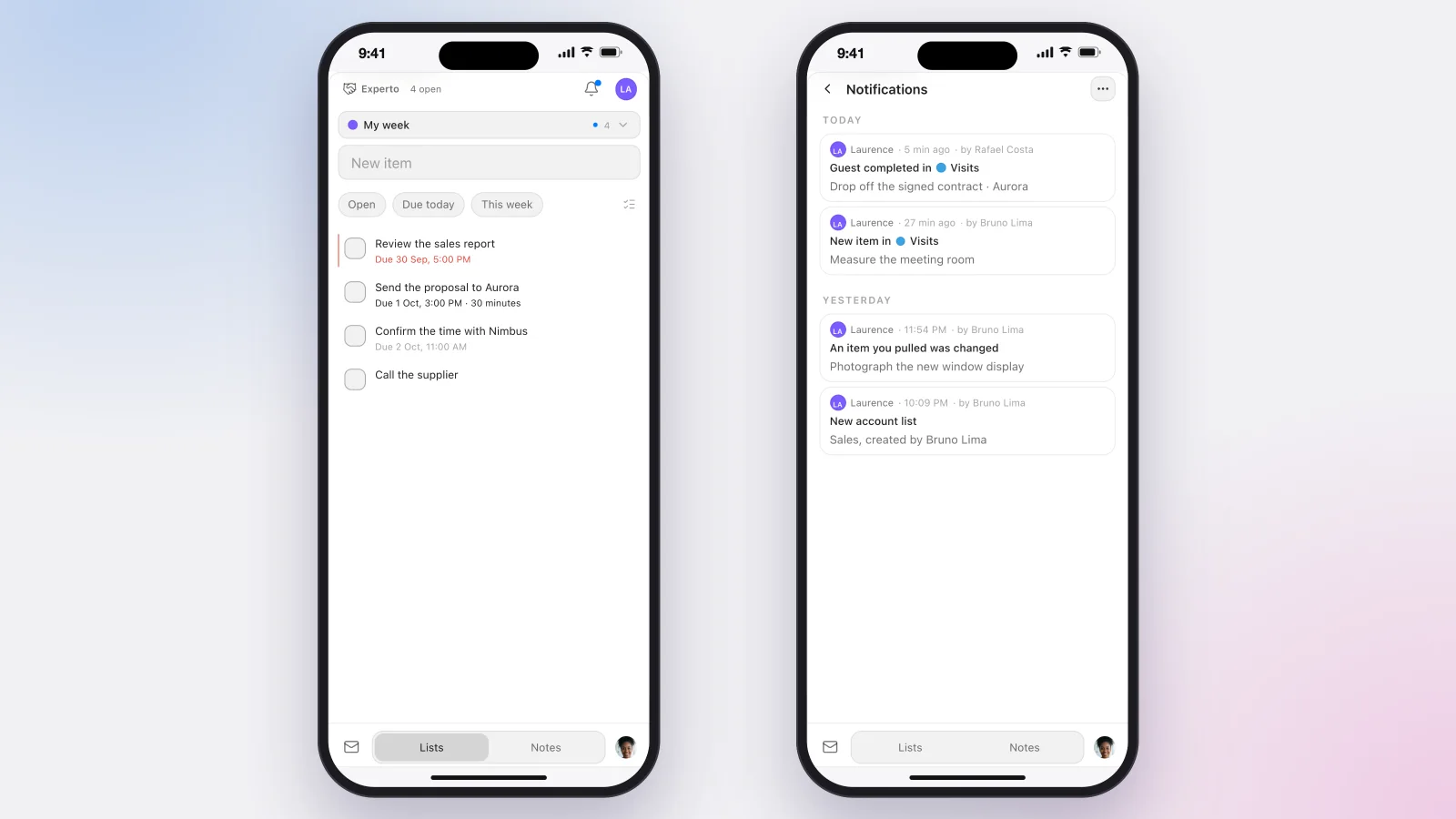
On iPhone, the navigation sits at the bottom, within reach of your thumb. Everything else is the Experto you already know:
- At the top: how many tasks are pending, the notifications bell and your account. In more than one? Tap the account to switch.
- In the middle: the open list, with New item at the top and the Open, Due today and This week filters.
- At the bottom: Messages, Lists and Notes, plus your photo, which opens your profile.
Want another list? Tap Lists again, and the picker opens.
Gestures in the task app for iPhone
Gestures save taps and spare you from opening menus. Here they are:
| Gesture | What it does |
|---|---|
| Tap the checkbox | Completes the task |
| Tap the row | Opens the task, with deadline, description and attachments |
| Swipe the row left | Shows Copy and Delete |
| Swipe the row all the way right | Pulls the task (or Pushes it, if it's already with you) |
| Touch and hold, then drag | Moves the task within the list |
| Drag from the left edge of the screen | Goes back to the previous screen |
Anything past its deadline shows in red, just like on the computer. Completed it on your phone? It shows as done on the web and on the computer panel right away.
Pull and Push in the palm of your hand
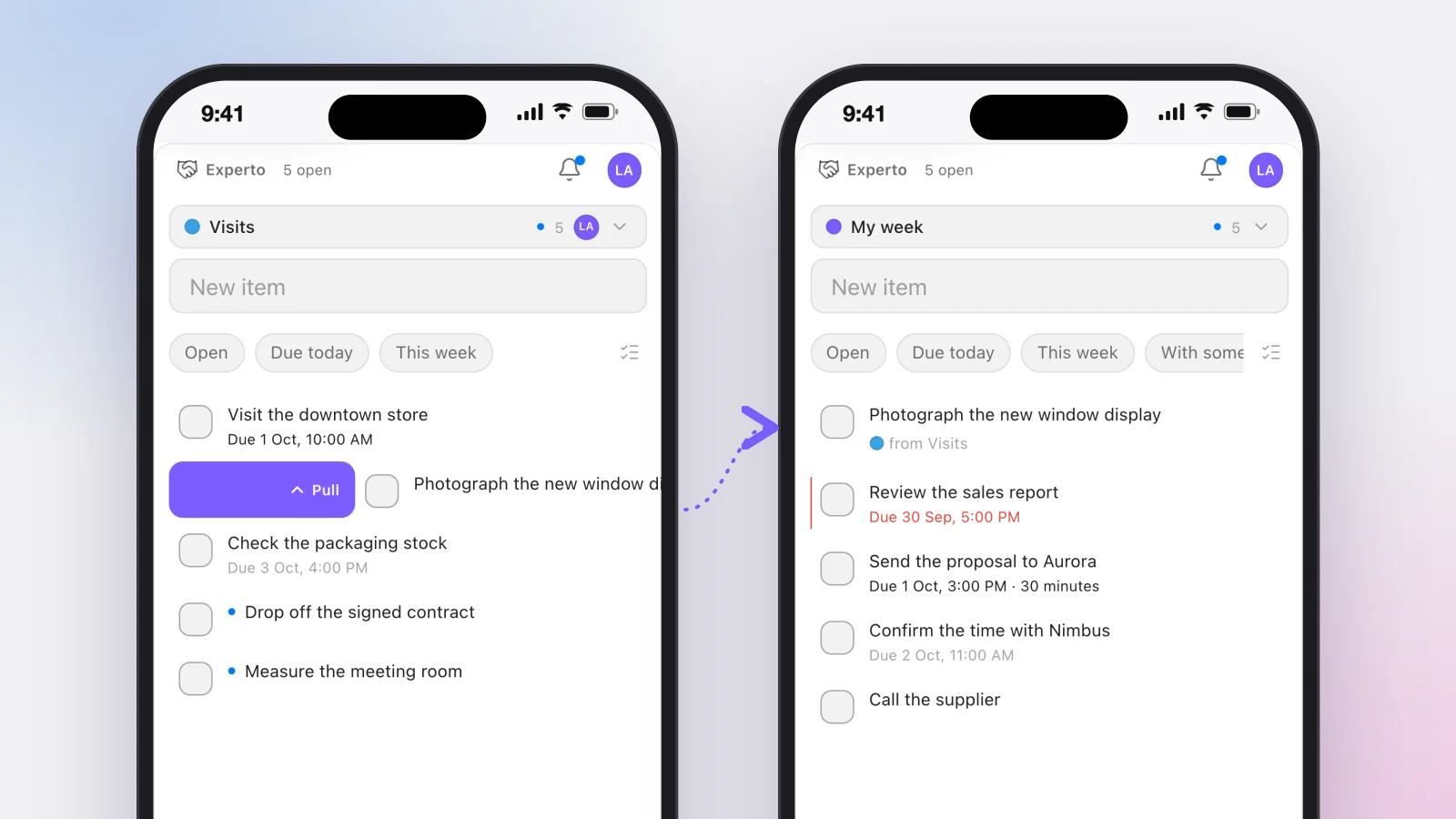
Spotted a task on the team's list that you'll handle while you're out? Swipe the row all the way right. Pull brings the task to you without taking it off the original list.
In practice:
- The task goes to the top of your first list under My lists, tagged with where it came from.
- On the team's list, everyone sees it's with you. Nobody does it twice.
- Done? The task is completed on the original list, and the flow moves on.
- Ran out of time? Swipe right again to Push it: it goes back, free for someone else to grab.
That's Experto's way to split tasks without anyone assigning them, now away from your desk too.
Notifications that reach your pocket
The first time, the app asks permission to send notifications. Say yes: that's how you hear about what matters without opening anything.
- A new task on one of your lists.
- A new message, including team announcements.
- A change to a task that's with you.
- A guest who completed their part.
Tapping a notification opens the right screen. The number on the icon shows what you haven't seen yet, and the sound follows your iPhone's silent mode.
Guests use the iPhone too
People outside the team, like a client or a store manager, join as guests and use the same app. They see only the tasks that are theirs: they complete them and can leave a comment for the team.
Completed by mistake? They get a few seconds to tap Undo. After that, whoever looks after the list gets "Guest completed" in the bell and a notification on their phone.
Guests are free, unlimited and don't take a seat, on every plan. To see a full workflow built with them, check out the agency production template.
For your personal life too
The same task app for iPhone takes care of home. Share the grocery list with whoever lives with you and check off each item in the aisle, while the other person sees everything updated.
To start without typing a thing, copy the complete grocery list and paste it into Experto.
What stays on the computer
Some things only make sense on a big screen. The panel on the edge of the screen, the shortcuts and the file tray belong to the task app for Mac and Windows. The Organizer, with lists side by side, lives on the web.
Plan management is done on the web as well.
Frequently asked questions
Is Experto's task app for iPhone free?
The app is free on the App Store, and Experto is free forever for up to 2 members, with every feature. Pricing for bigger teams is on the pricing page.
Does it work on iPad?
The app was made for iPhone. On iPad, it opens in an iPhone-sized window. To make the most of a big screen, use Experto in your browser.
Notifications aren't coming in. What should I do?
Open Settings on your iPhone, tap Notifications, choose Experto and turn on Allow Notifications. The step by step is in Apple's guide to notification settings.
Do I need a separate account for my phone?
No. It's the same account as the web and the computer, with the same lists.
Ready to carry your lists in your pocket? Create your free account, download the task app for iPhone and check off your next task wherever you are.