Experto on Mac and Windows: your tasks one click away, on the edge of your screen
A tab on the edge of your screen opens your lists over any app. See how to install it, the shortcuts and what you can do without switching windows.

Looking for a task app for Mac or Windows that doesn't make you switch windows all day long? Experto sits in a small tab on the edge of your screen: one click and the panel opens over any app, with your lists and your team's.
Every trip to another tab just to check your list is one more interruption. In the Breaking down the infinite workday report, from Microsoft's Work Trend Index (2025), usage data shows that employees are interrupted every two minutes during core work hours, 275 times a day, by meetings, emails or chats. Checking your list doesn't have to be one of them.
How the panel on the edge of your screen works
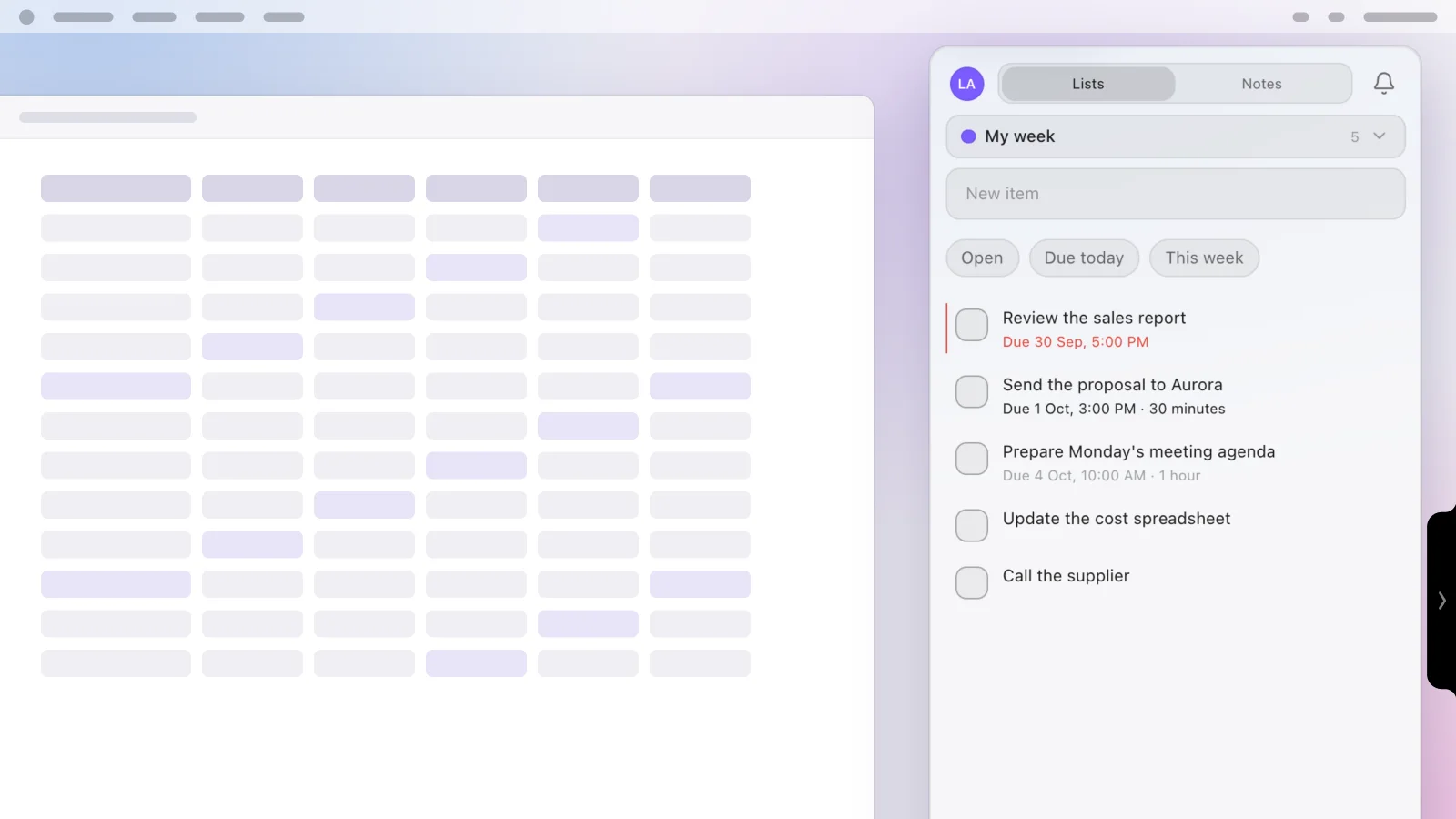
The panel is all of Experto, in a narrow space right against the edge. Lists, notes and messages live there, synced instantly with the web and your phone.
- Open: click the tab on the edge. The panel slides over whatever is on your screen, without hiding the app you're in.
- Jot it down: the cursor is already in New item. Type the task, press Enter and get back to what you were doing.
- Close: click the tab again or press Esc. Focus goes back to the window you were using.
The tab starts on the right edge, in the middle of the screen. In the app's Settings, you can move it: right or left, top, middle or bottom.
How to install the task app for Mac and Windows
Installing takes a few minutes and uses the same account as the web. Before downloading, check that your computer is on the list:
| System | What you need |
|---|---|
| Mac | macOS 12 or later, with Apple silicon |
| Windows | Windows 10 or 11 |
- Download the installer for Mac or for Windows.
- On a Mac, open the downloaded file and drag Experto to the Applications folder. On Windows, run the installer. If Windows shows a protection warning, click More info and then Run anyway.
- Open the app, type your email and sign in with the code that lands in your inbox. In the app, use the code, because the link in the email opens the web version.
Done: the tab shows up on the edge of your screen. New account with nothing in it yet? The getting started with Experto tutorial shows how to create your lists and bring in your team.
Shortcuts that save you clicks
Two shortcuts do the heavy lifting: one opens the panel, the other turns copied text into a task. Both work with any app in front.
| Action | Mac | Windows |
|---|---|---|
| Show or hide the panel | ⌥Space or ⌃⌘E | Alt+Space or Ctrl+Alt+T |
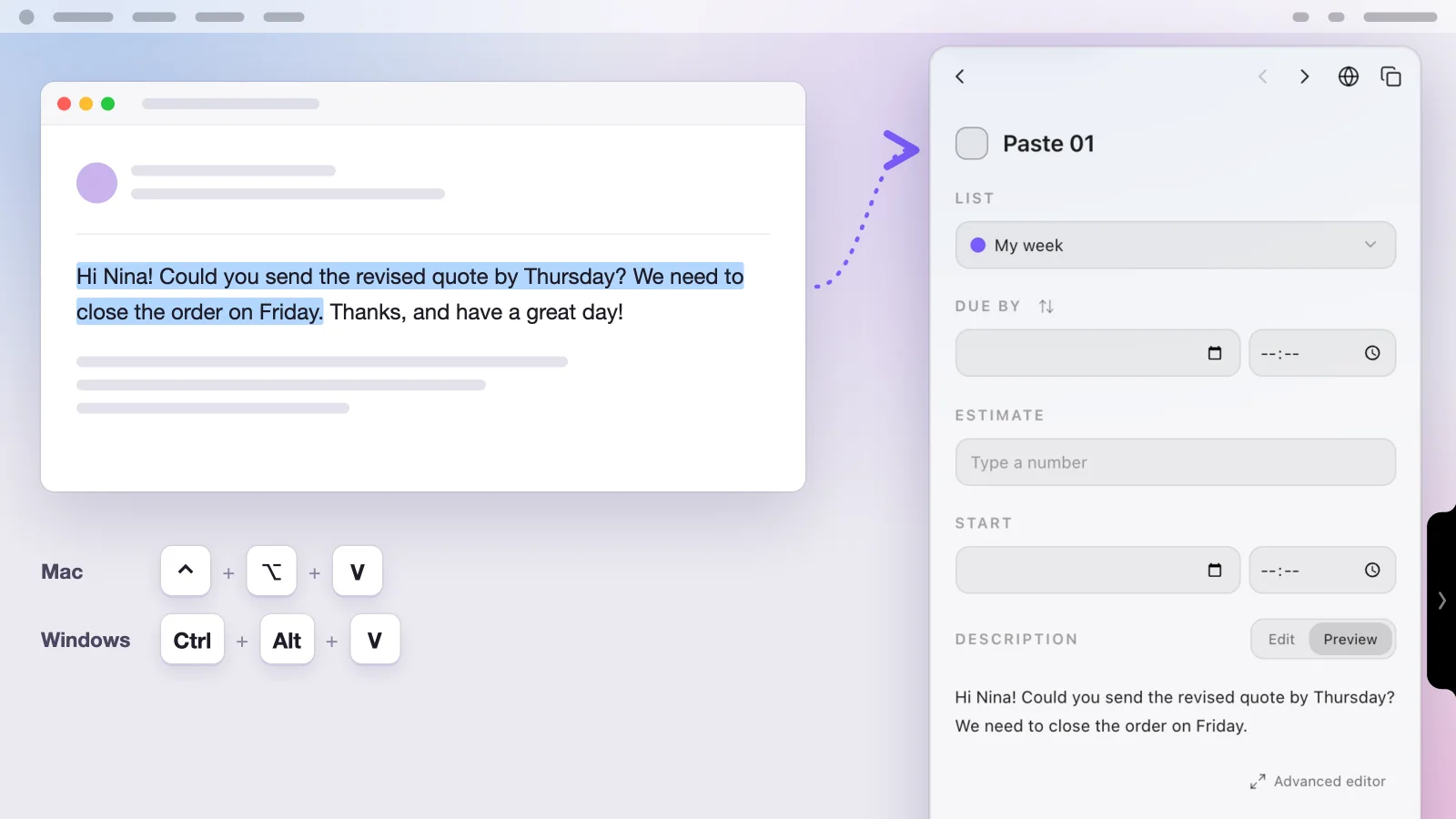
| Paste as item | ⌃⌥V | Ctrl+Alt+V |
| Close the panel | Esc | Esc |
| Open the list picker (on the lists screen) | Space | Space |
Paste as item is the shortcut for anyone who gets requests by email or chat. Copy the text, press the shortcut and Experto creates the item "Paste 01" in the open list, with the copied text in the description. Then just give it a better name and a deadline.
Copied a whole list, one task per line? Paste it into New item, and each line becomes a task. The guide on how to paste multiple tasks at once has the details.
The tab tells you what's new
With the panel closed, the tab on the edge shows what changed without you opening anything. Watch for these signs:
- Blue dot: a new notification in the bell, like a new item in one of your lists.
- Yellow dot: an unread message.
- A little shake: the moment something new arrives. With sound on in Settings, you also hear an alert.
Inside the panel, anything past its deadline turns red. The Due today and This week filters show only what's coming up.
Did you Pull a task from the team's list? If someone changes it, the bell lets you know. That's how a team can split tasks without anyone assigning them.
Drag files to the edge
In the desktop app, you can attach files to a task without hunting for a button. Here's how:
- Drag the file to the tab on the edge. The panel opens and shows the tray at the bottom.
- Open the task that should get the file.
- Click Save here, and the files become its attachments.
The tray holds up to 10 files, up to 10 MB each, for 3 minutes. Until you click Save here, nothing leaves your computer. With the task already open, dropping the file on it attaches it right away.
Settings that make the app yours
The app's Settings have the options that only make sense on a computer. They're worth a look on day one:
- Launch with Mac or Launch with Windows: Experto opens on its own when you turn on your computer.
- Hide in full screen: off, the tab stays on the edge during videos and presentations; on, it gets out of the way.
- Sound on new message or new item: turns the sound alert on or off.
The app updates itself. When a new version arrives, you'll see Restart to update.
To plan the team's week with lists side by side, use the Organizer on the web: it opens in your browser, and the walkthrough is in how to plan your team's week. Away from your desk, the task app for iPhone shows the same lists.
Frequently asked questions
Does Experto work on a Mac with an Intel processor?
No. The Experto task app for Mac runs on Macs with Apple silicon and macOS 12 or later. On an Intel Mac, use Experto in your browser.
To check yours, see Apple's guide to Mac computers with Apple silicon: in About This Mac, you'll see an item labeled Chip.
Is the task app for Windows paid?
The app is free to download, and Experto is free forever for up to 2 members, with every feature. Pricing for bigger teams is on the pricing page.
The shortcut doesn't open the panel. What should I do?
Another app is already using ⌥Space (or Alt+Space, on Windows). Use the second shortcut: ⌃⌘E on a Mac or Ctrl+Alt+T on Windows.
Do I need to keep my browser open?
No. The app works on its own, and everything you change in it shows up on the web and on your iPhone right away.
No more hunting for your list in another tab. Create your free account, download the task app for Mac or Windows and keep your tasks one click away, on the edge of your screen.